How to play
with friends
Gather players in a MOBSIK room, then launch a map in Red Alert. Every step is shown on a real phone.
Before you begin
Install the same APK on every phone. Game files are included. Players can choose Russian or English independently.
Download the game ↗Screenshots: Mi MIX2 in Russian, Xiaomi 14 in English. Names and rooms shown are examples.
Before you connect
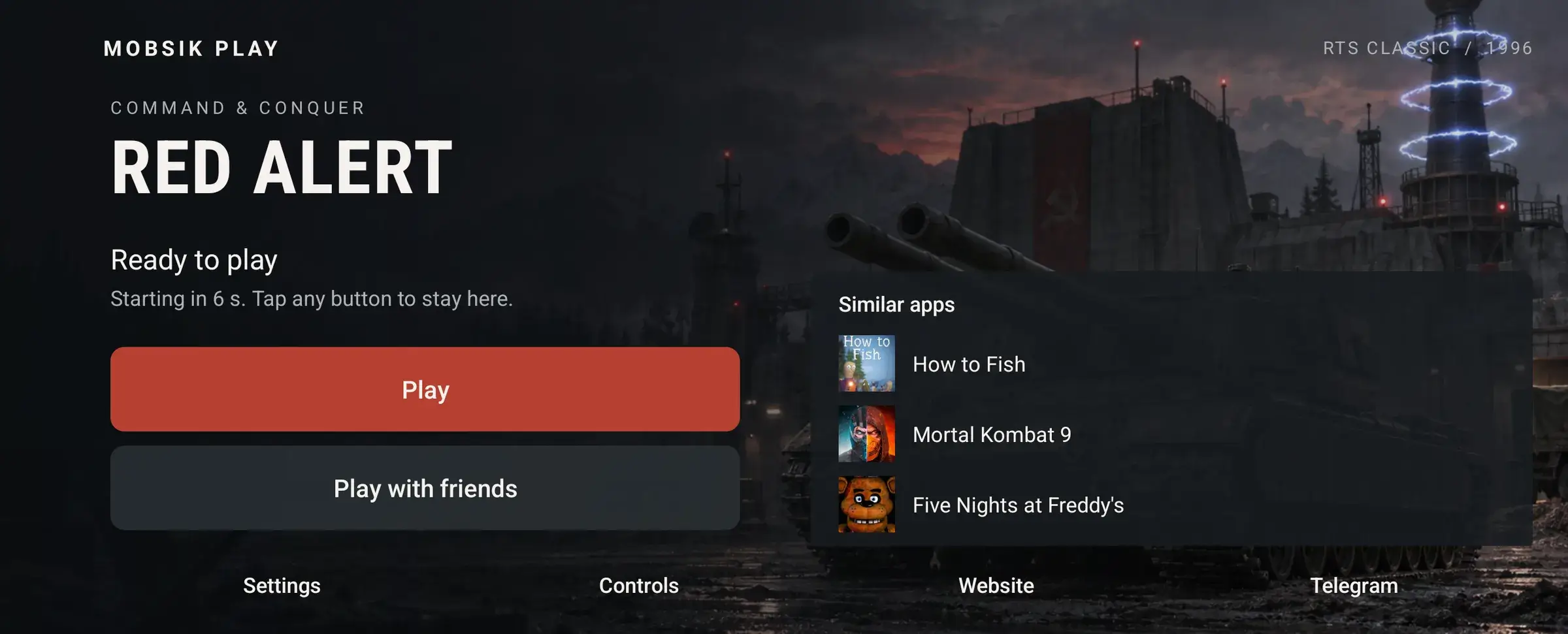
Open Play with friends
Install the same APK version on every phone. Game files are included. Wait for preparation, then tap Play with friends. This also cancels the automatic launch.
 Enlarge ↗
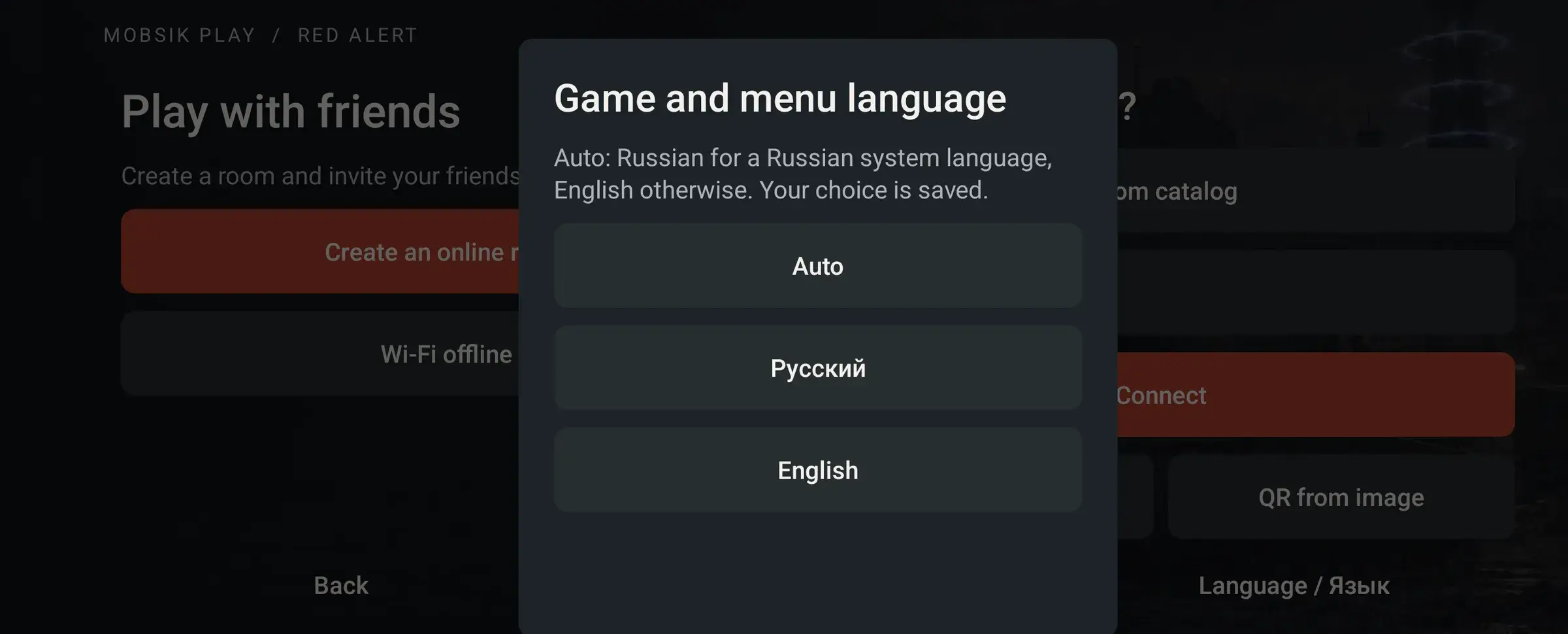
Choose your language before joining
Tap Language / Язык at the bottom. Auto uses Russian for a Russian system language and English otherwise. You can also change this in launcher settings. Russian and English players can join the same match.
 Enlarge ↗
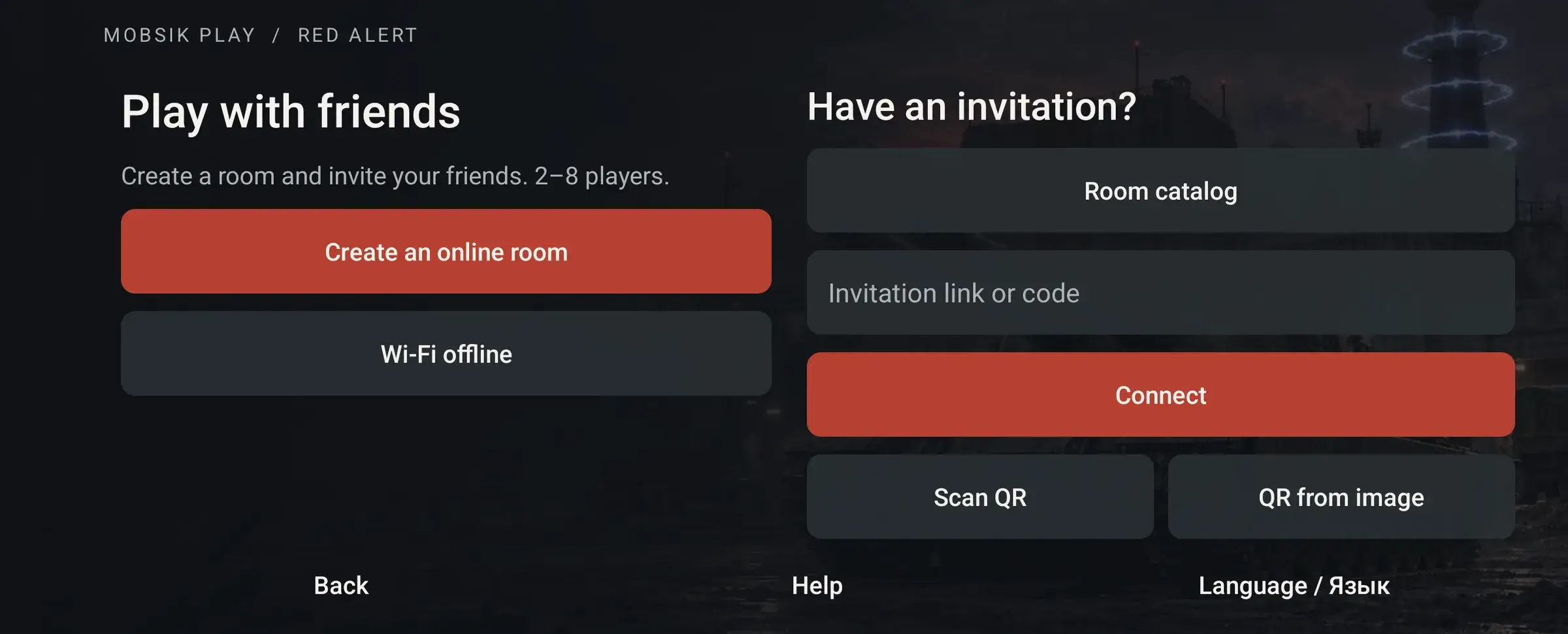
Host: create an online room
Tap Create an online room
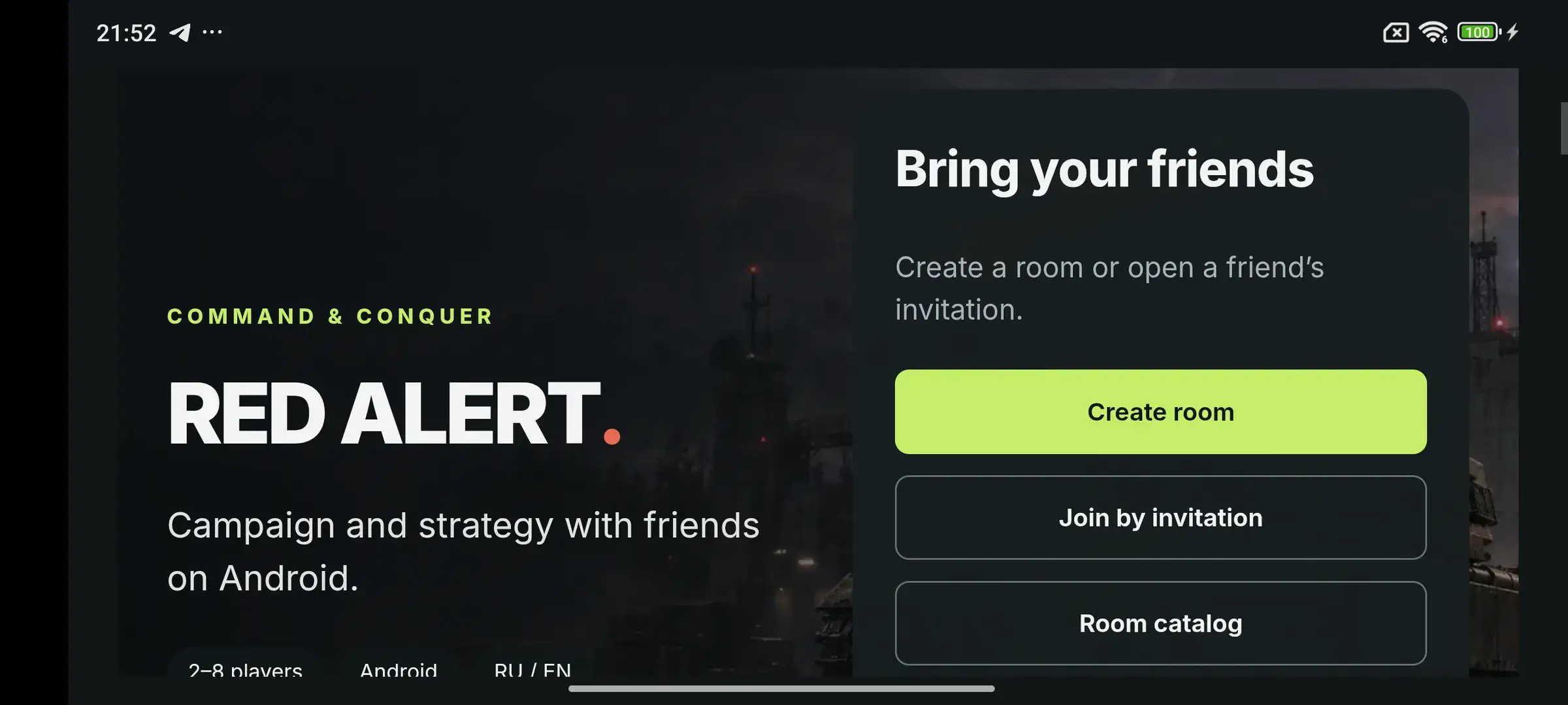
The MOBSIK PLAY website opens. One person creates the room; everyone else joins as a guest.
 Enlarge ↗
On the website, tap Create room
The button is in the Bring your friends section. Scroll towards the top if needed.
 Enlarge ↗
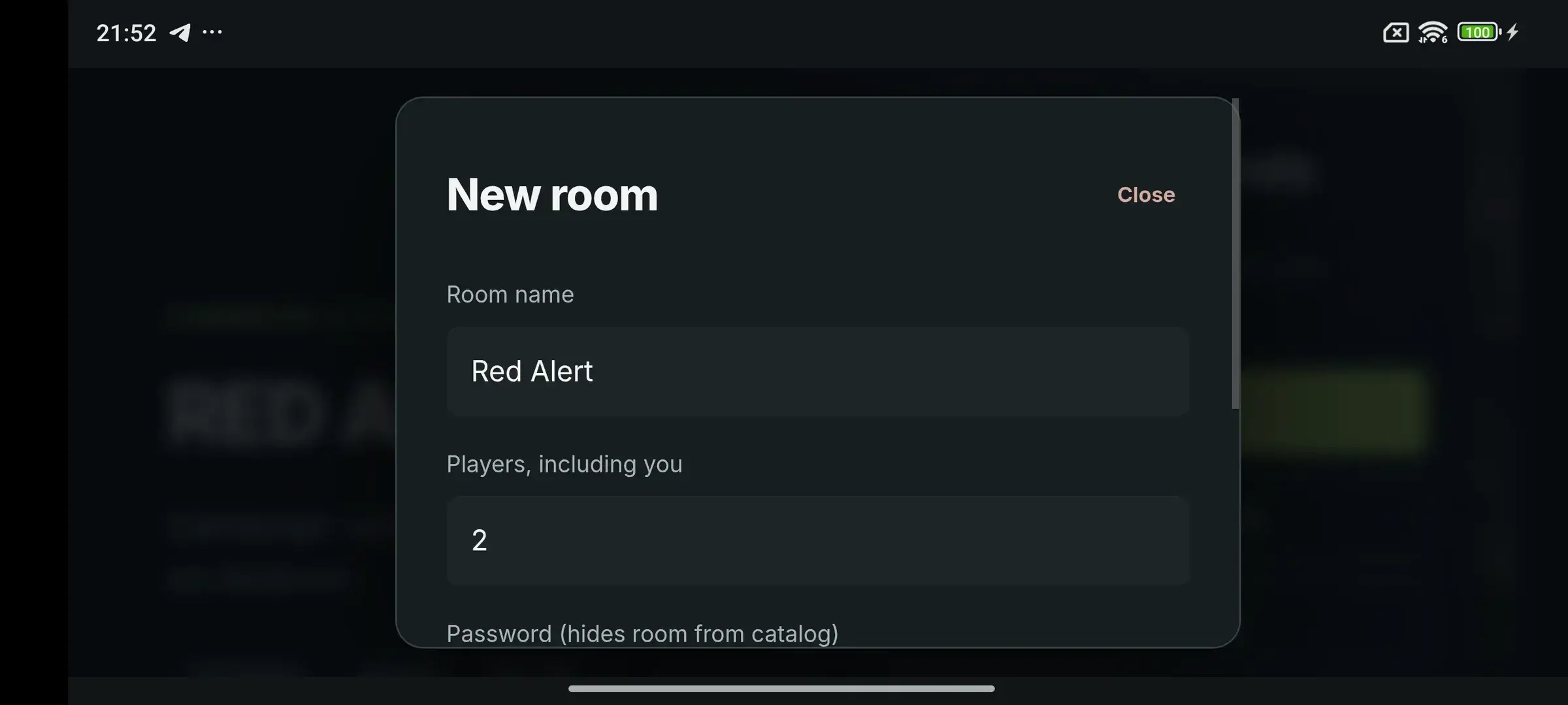
Set a room name and player count
Use a name your friends can recognise. The player count includes you: leave 2 for a two-player match. Rooms support 2 to 8 seats.
 Enlarge ↗
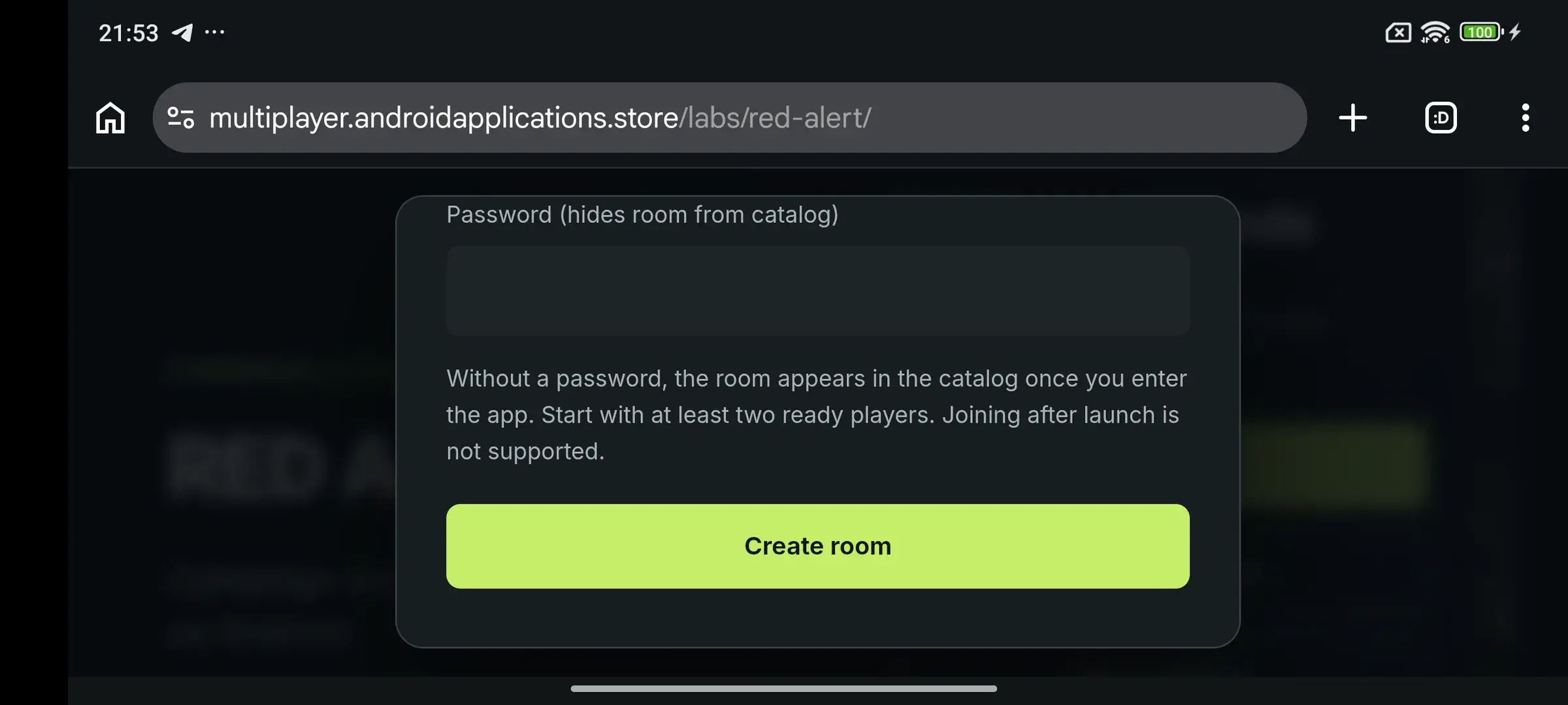
Create the room
Scroll down inside the dialog and tap Create room. A room without a password appears in the catalog after you enter the app. For a password-protected room, share an invitation.
 Enlarge ↗
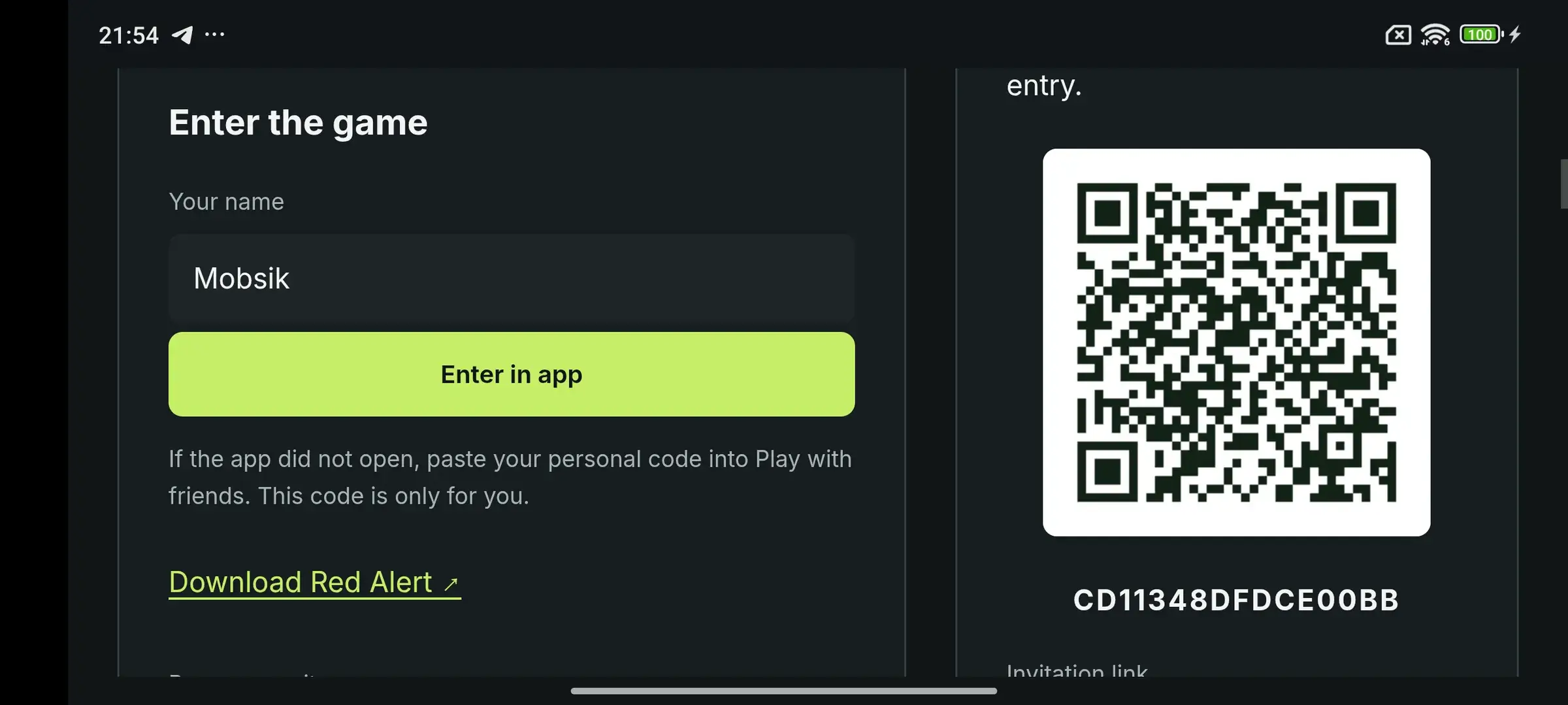
Enter the app first
In Enter the game, type your name and tap Enter in app. Allow the browser to open Red Alert if prompted. The app connects automatically.
 Enlarge ↗
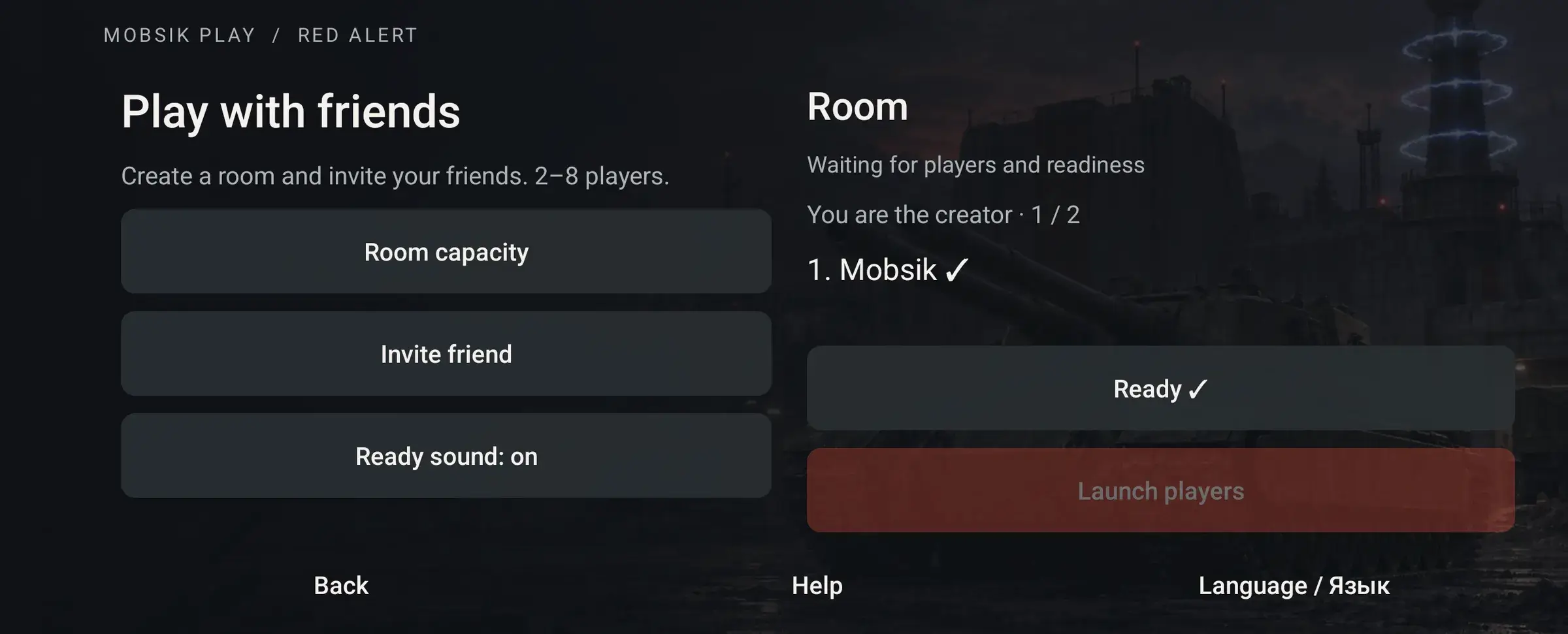
Invite the other players
Check that your name appears in the room. Tap Invite friend to share the room link or QR. Friends can also find an open room in the catalog. Do not share your personal entry code.
 Enlarge ↗
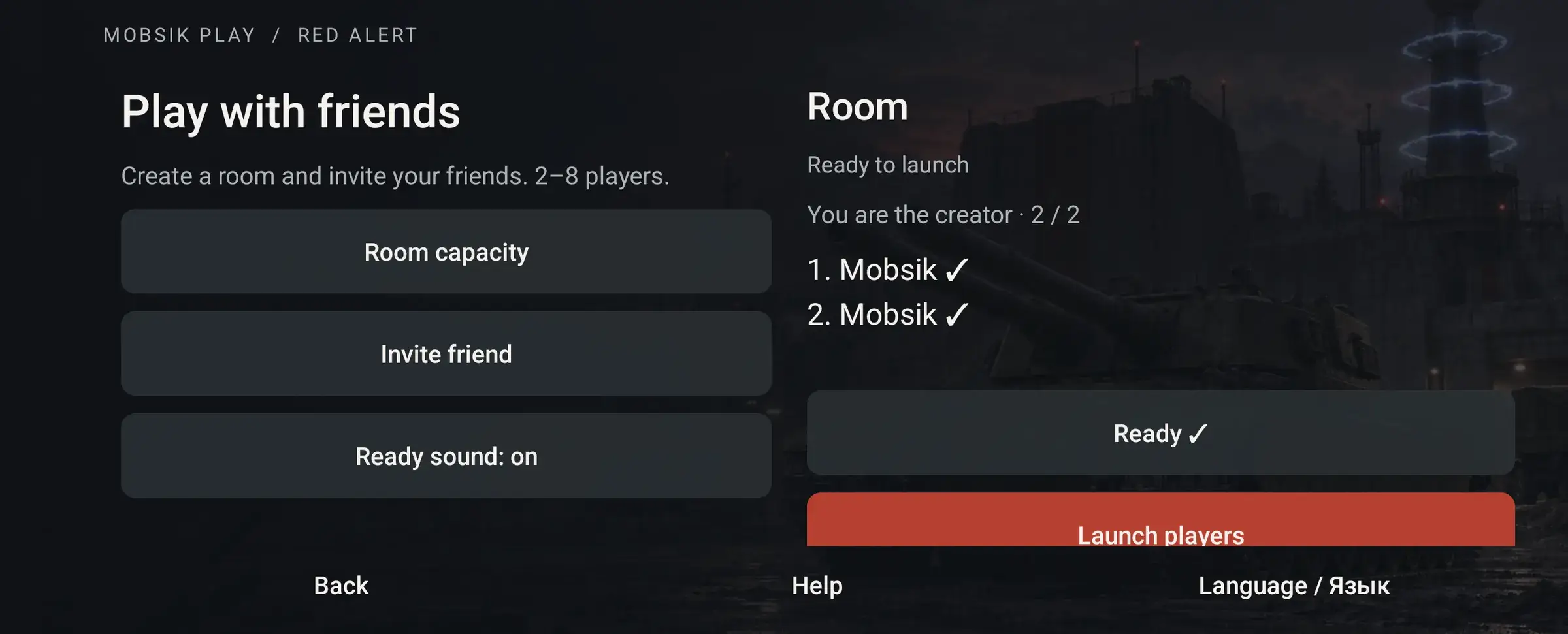
Wait for readiness, then launch players
Wait until everyone has joined and each name has a check mark. Ready ✓ means that player is already ready; do not toggle it off. Tap Launch players. Two players are enough; unused seats may stay empty.
 Enlarge ↗
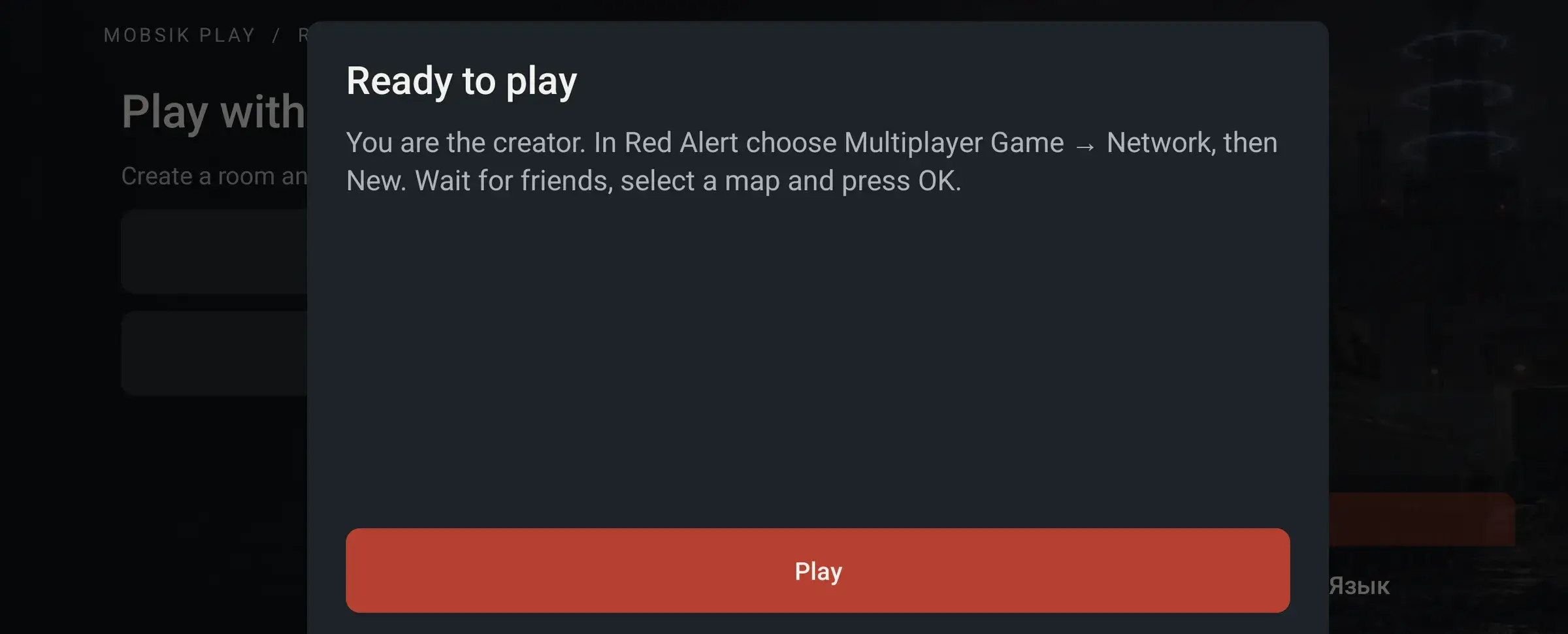
Confirm the game launch
In Ready to play, tap Play. Continue with Inside Red Alert below. The battle map has not started yet.
 Enlarge ↗
Guest: join an online room
Open Room catalog
In Play with friends, tap Room catalog. If you already have an invitation link, open it and skip to Enter with your own name.
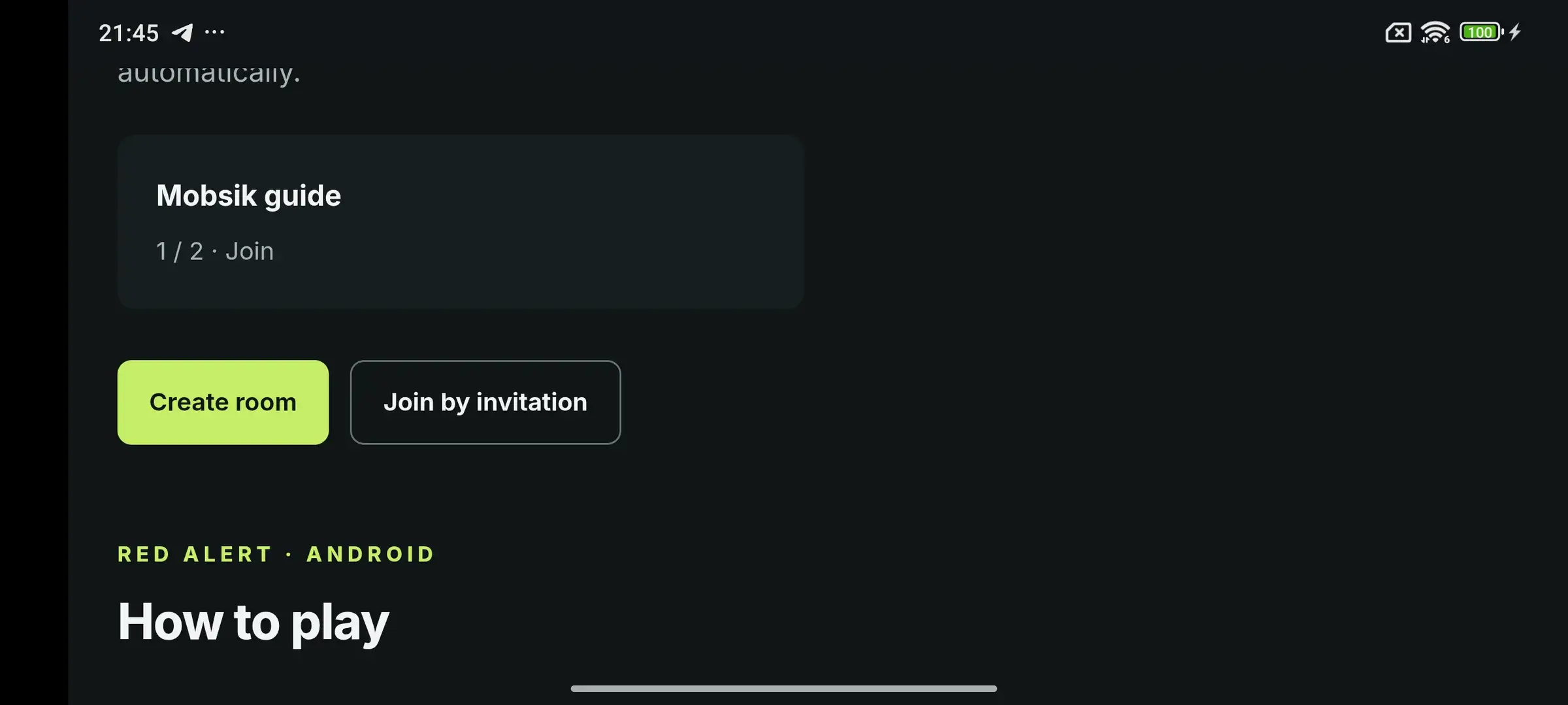
Enlarge ↗Choose the host’s room
Tap the card with the host’s room name. The catalog shows rooms without passwords, with free seats and a connected host. When the list is empty, you can create your own room.
 Enlarge ↗
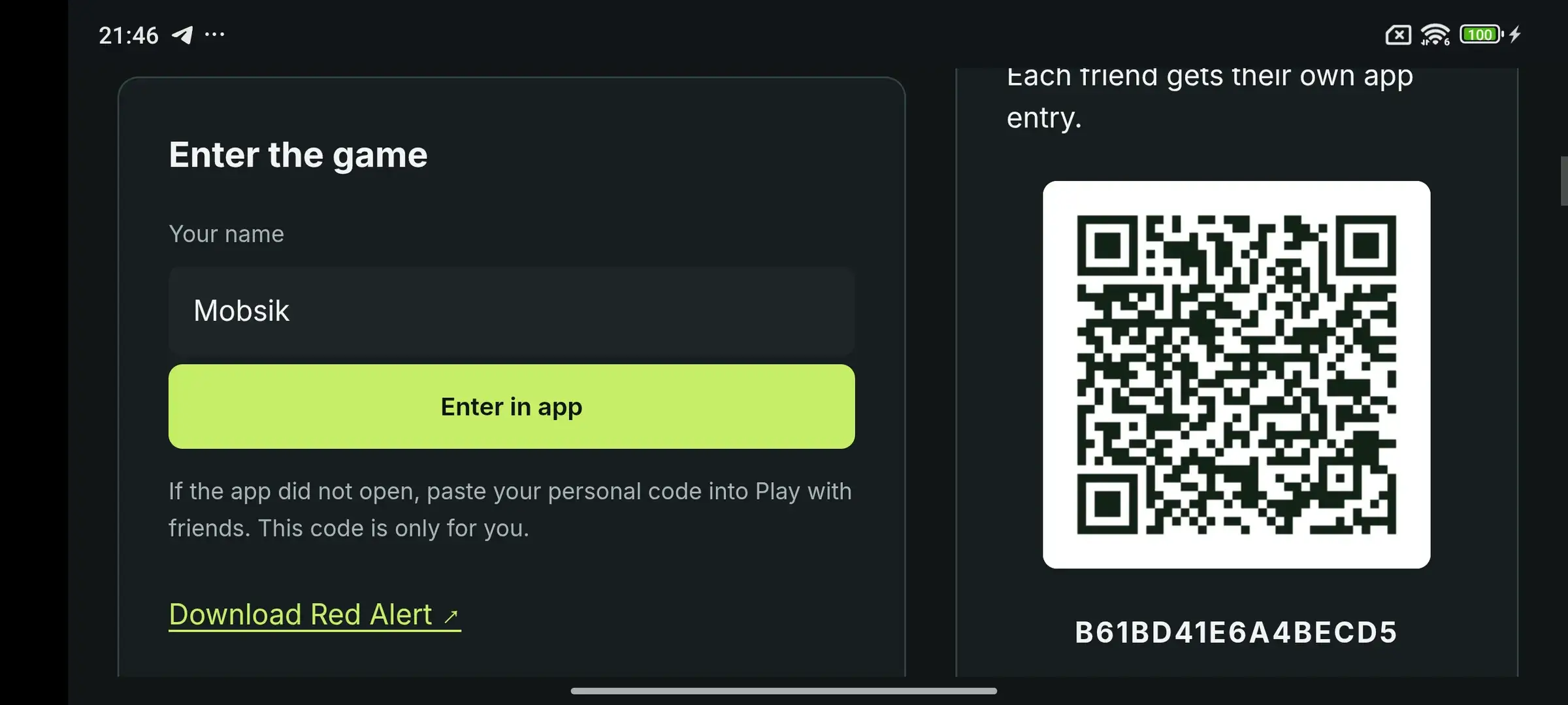
Enter with your own name
Enter your name and tap Enter in app. Confirm opening Red Alert if asked. If the app does not open, copy your own personal entry code into the app’s invitation field and tap Connect.
 Enlarge ↗
Check your name and readiness
Wait for your name in the room. Tap I’m ready if shown. If the button already says Ready ✓, leave it as it is. The host starts the launch.
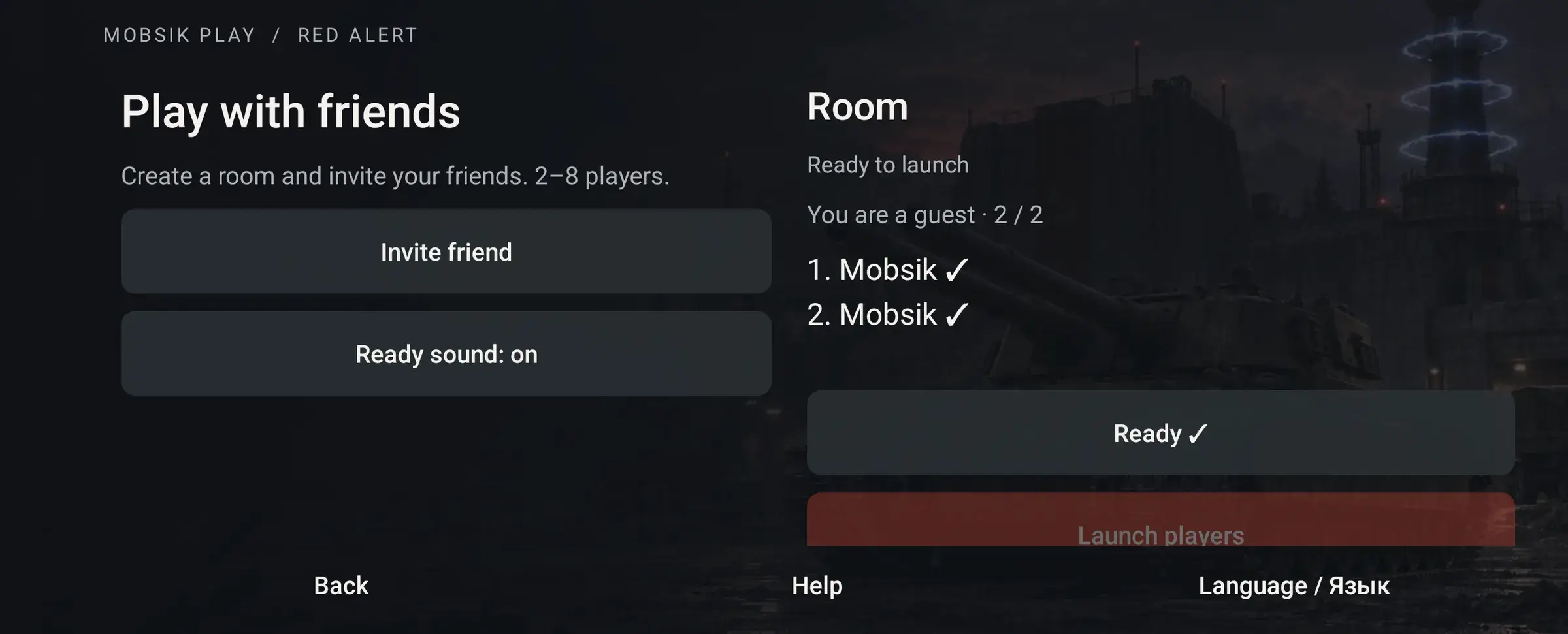 Enlarge ↗
Tap Play
This dialog appears after the host launches the players. Tap Play and follow the next steps. Keep the app in the foreground while connecting.
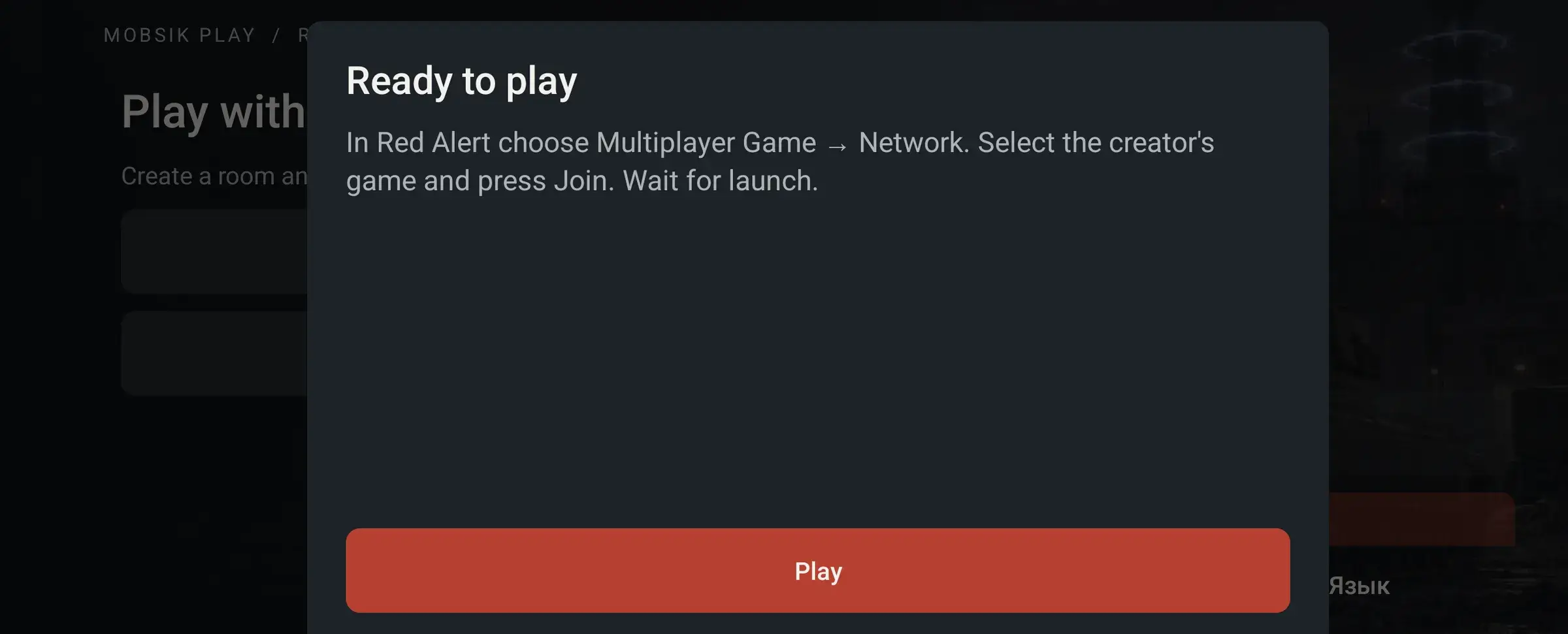 Enlarge ↗
Inside Red Alert: everyone
Open Multiplayer Game
In the Red Alert main menu, tap Multiplayer Game. Both the host and every guest must do this.
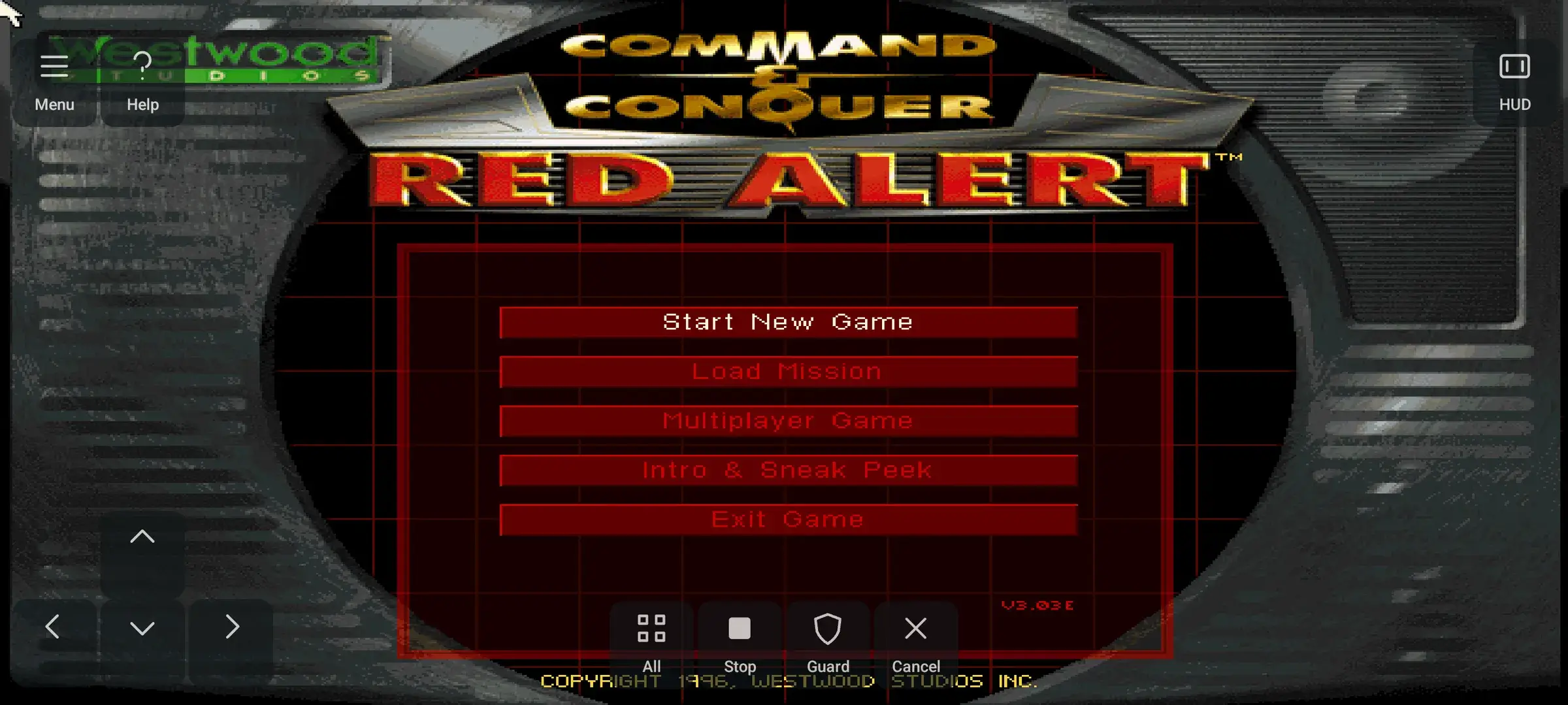 Enlarge ↗
Choose Network
In the next menu, tap Network. Use this for both MOBSIK internet rooms and local Wi-Fi. Skirmish is for playing against the computer.
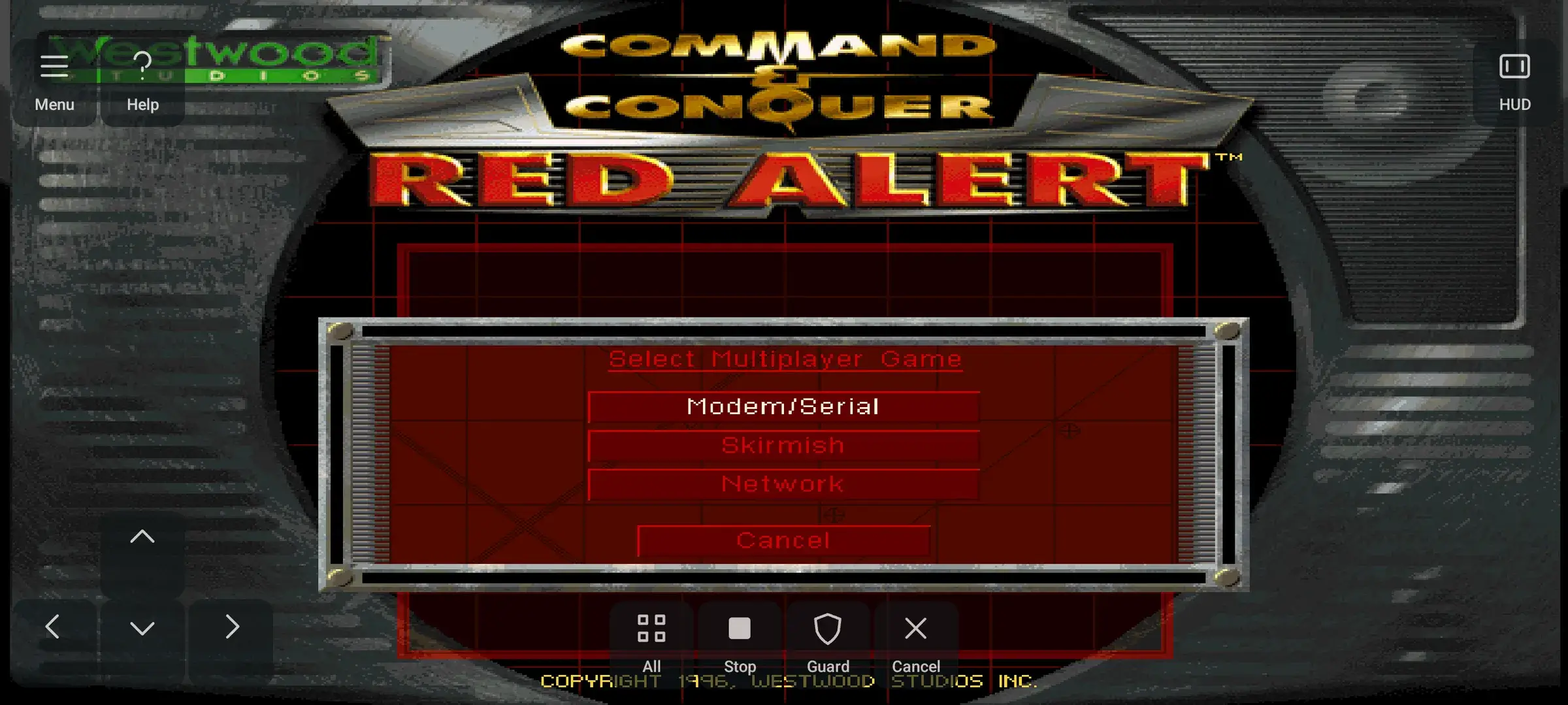 Enlarge ↗
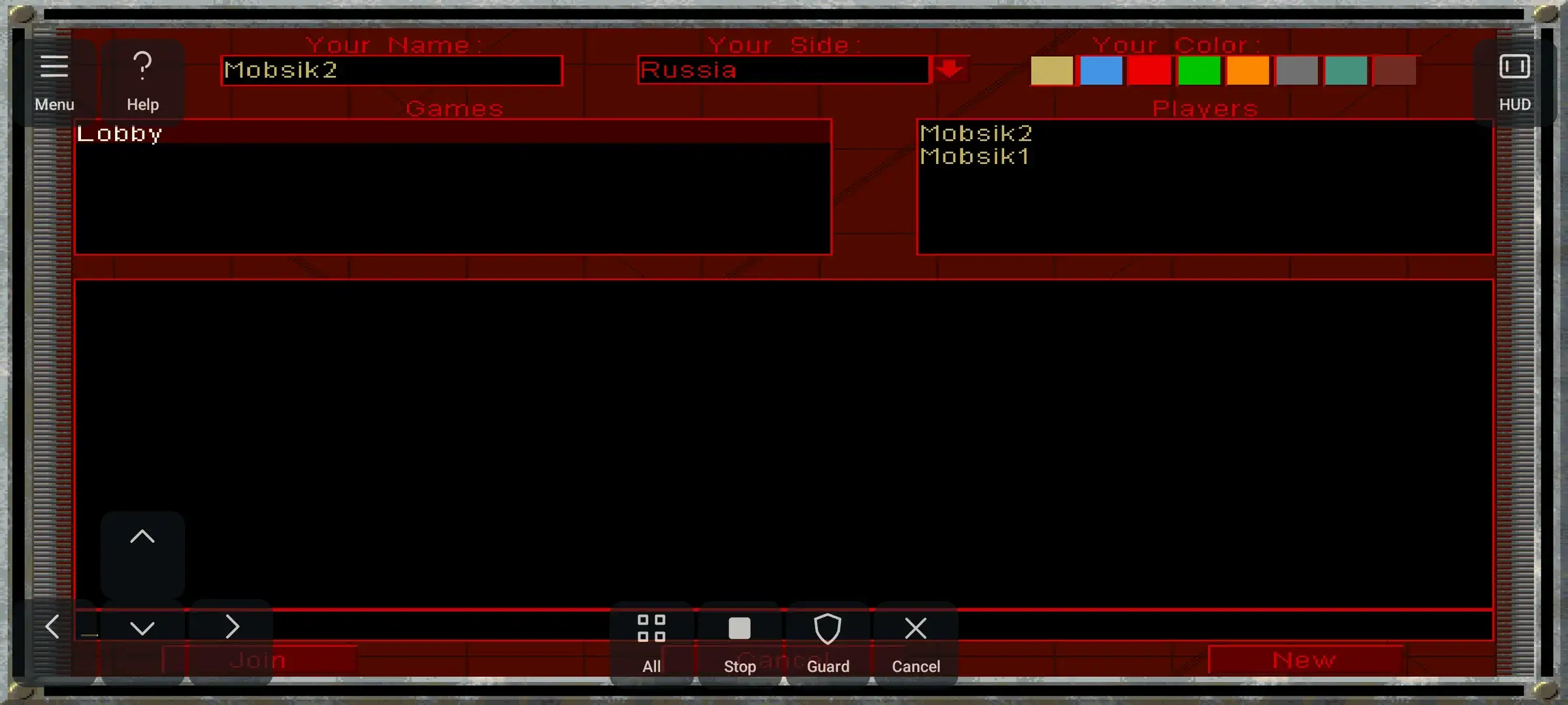
Hide the touch controls with HUD
Tap HUD in the top-right corner. The touch controls can cover Join and Cancel at the bottom. Choose your name, side and colour before creating or joining the game.
 Enlarge ↗
Inside Red Alert: host
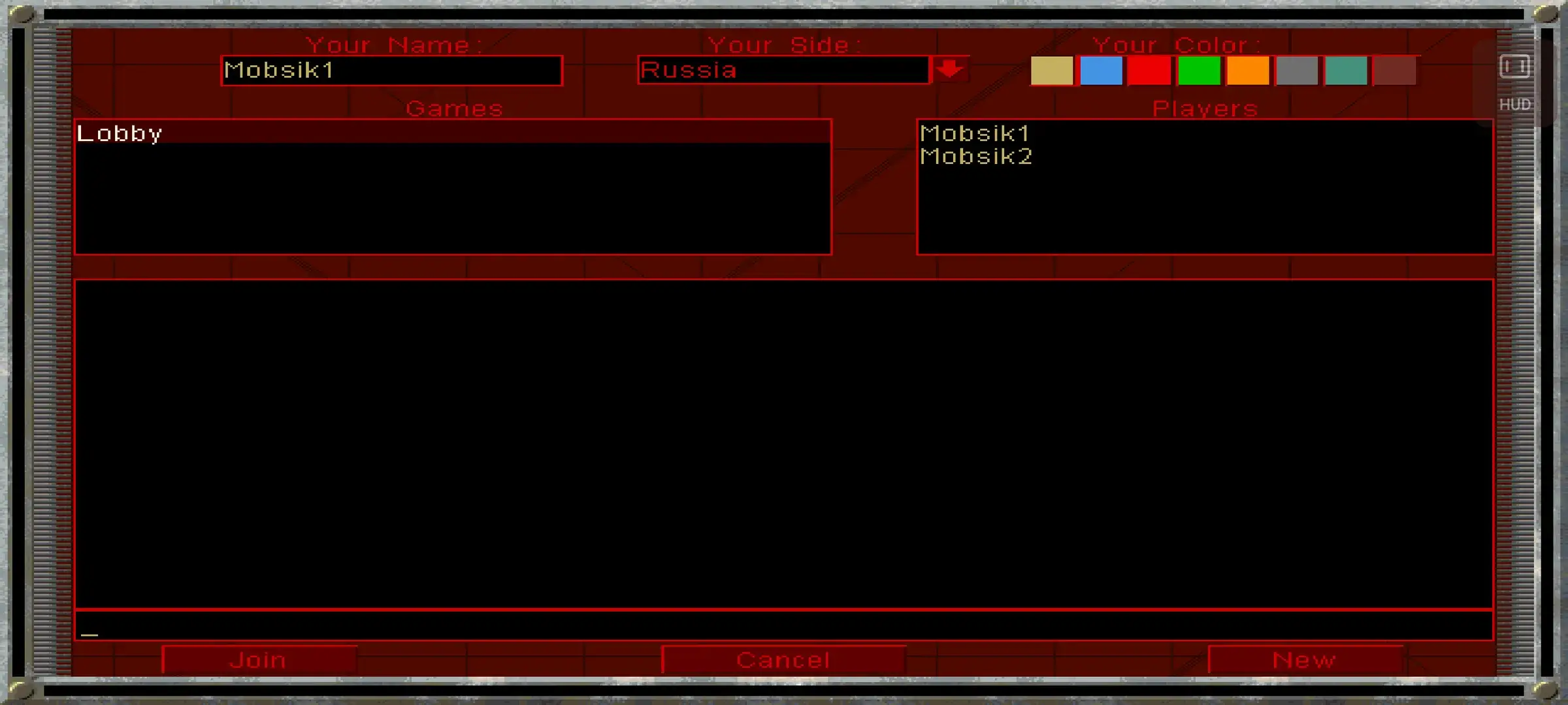
Tap New in the bottom-right corner
In the network lobby, tap New. Only the room host creates a game. Guests select that game from the list, as shown below.
 Enlarge ↗
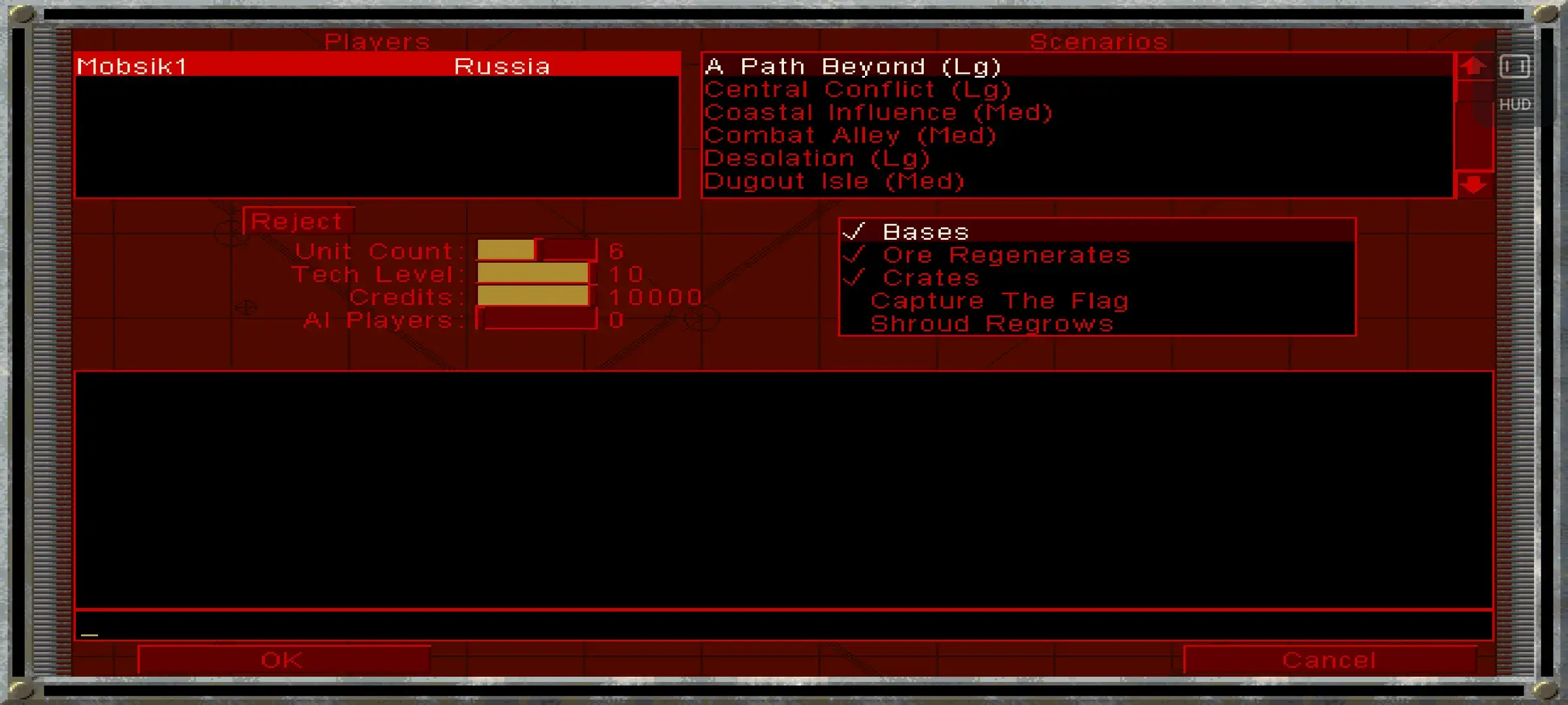
Choose a map and settings
The map list is in the top-right. Our test used A Path Beyond (Lg). On the left, adjust unit count, tech level, credits and AI players. Use a map with enough starting positions. Do not tap OK yet.
 Enlarge ↗
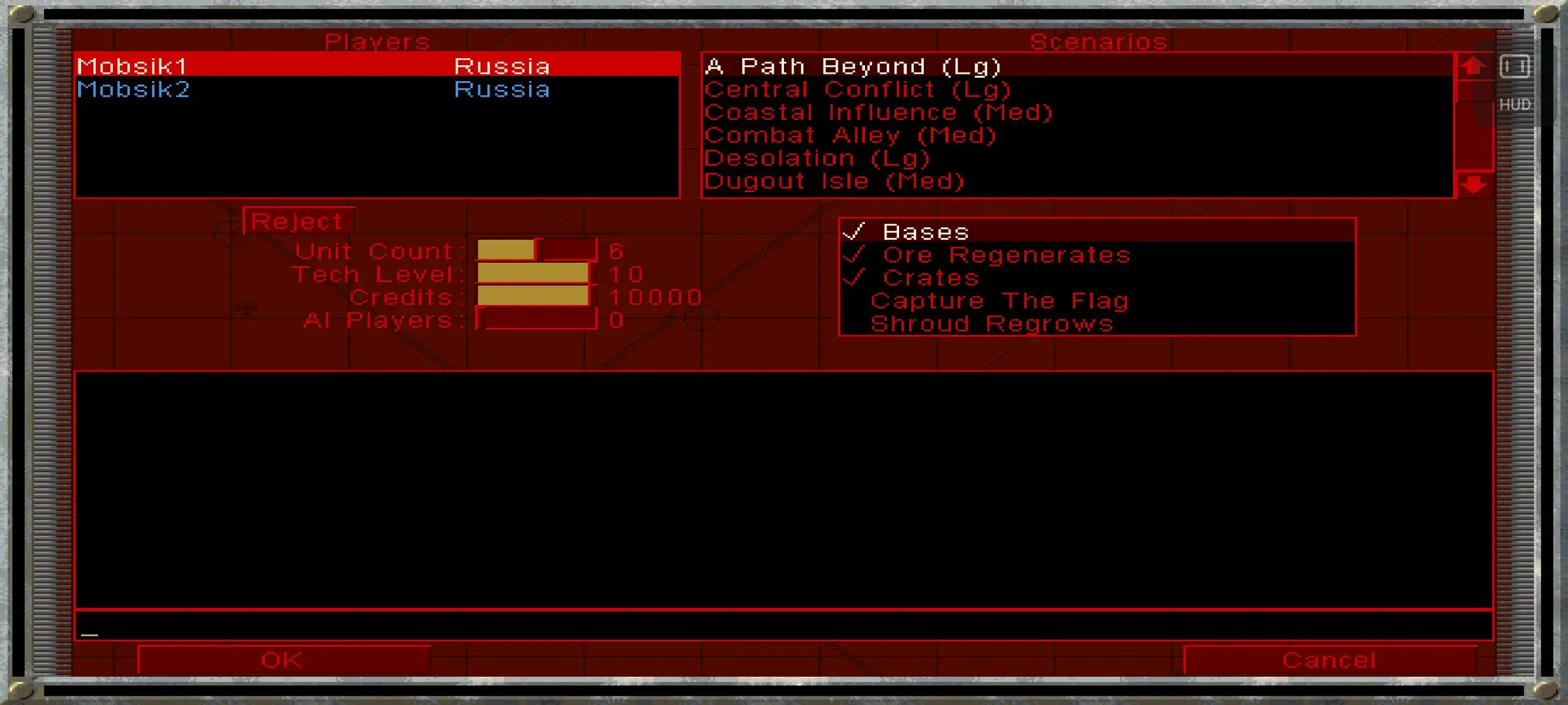
Check the player list and tap OK
Wait until every player appears in Players at the top-left. This example has Mobsik1 and Mobsik2. Now tap OK in the bottom-left corner. The map loads for everyone. Players cannot join after the match starts.
 Enlarge ↗
Inside Red Alert: guest
Find the game in the left-hand list
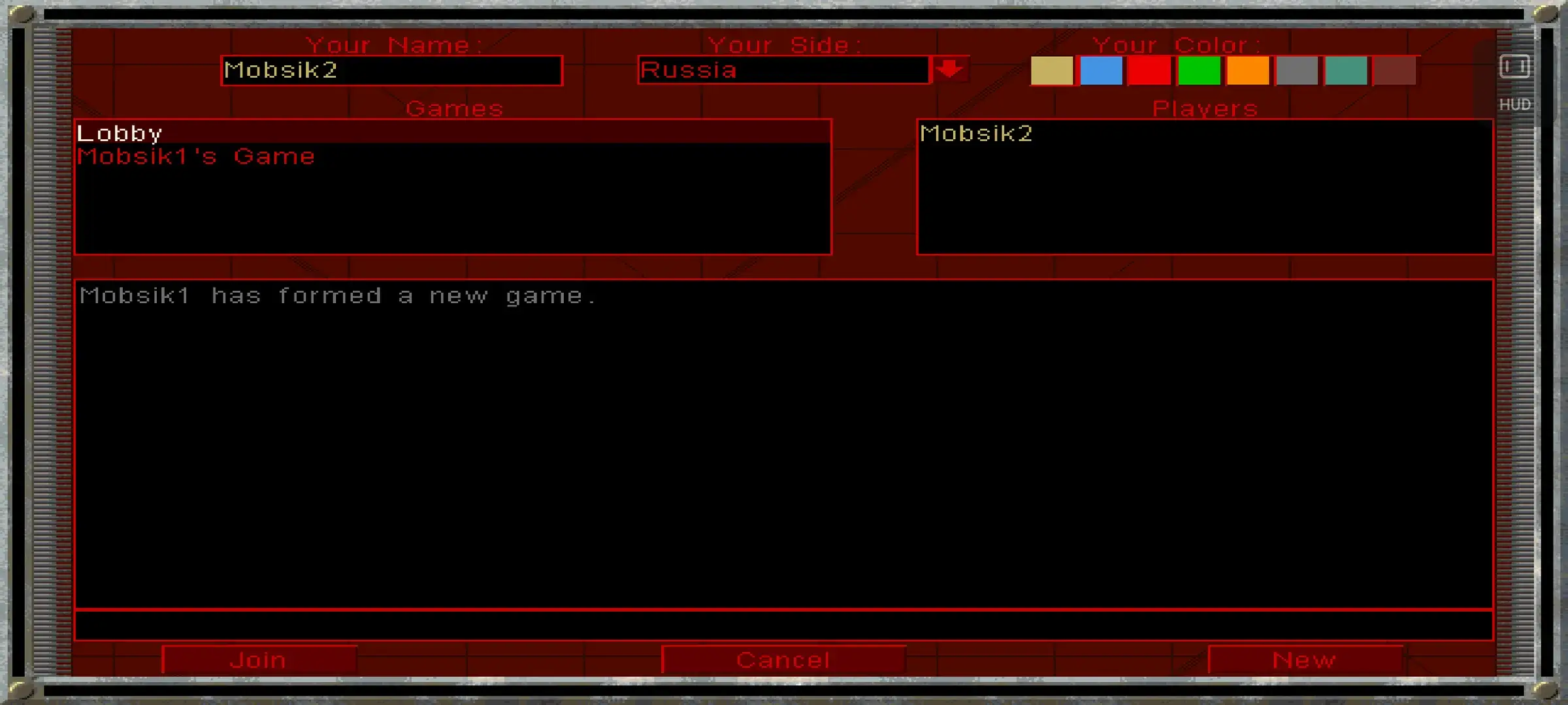
Wait for the host to tap New. In Games on the left, look for Mobsik1’s Game, or your host’s name. The Lobby row at the top does not join the map.
 Enlarge ↗
Select the game, then tap Join
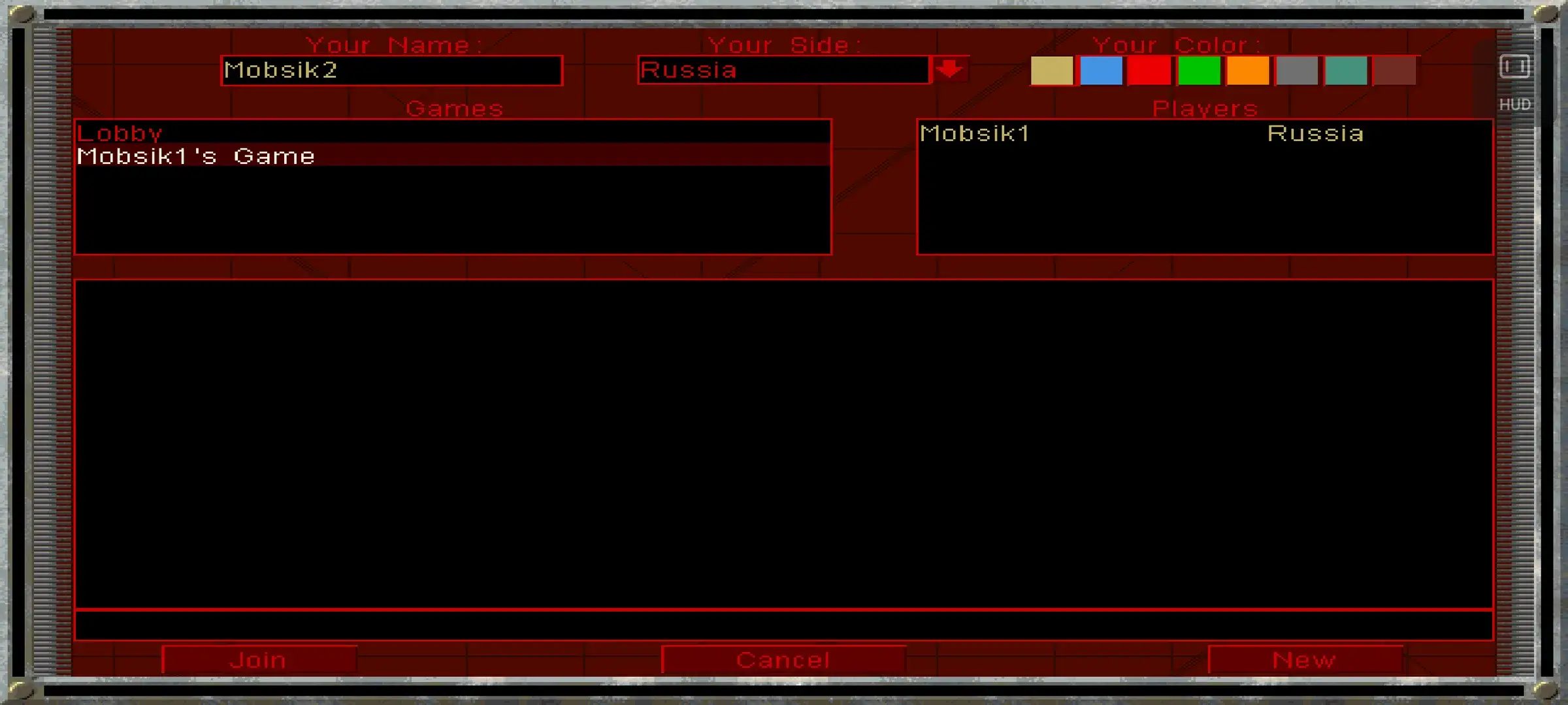
Tap Mobsik1’s Game so the row turns bright. Then tap Join in the bottom-left corner. If touch controls cover the button, hide them with HUD.
 Enlarge ↗
Wait for the host to start the map
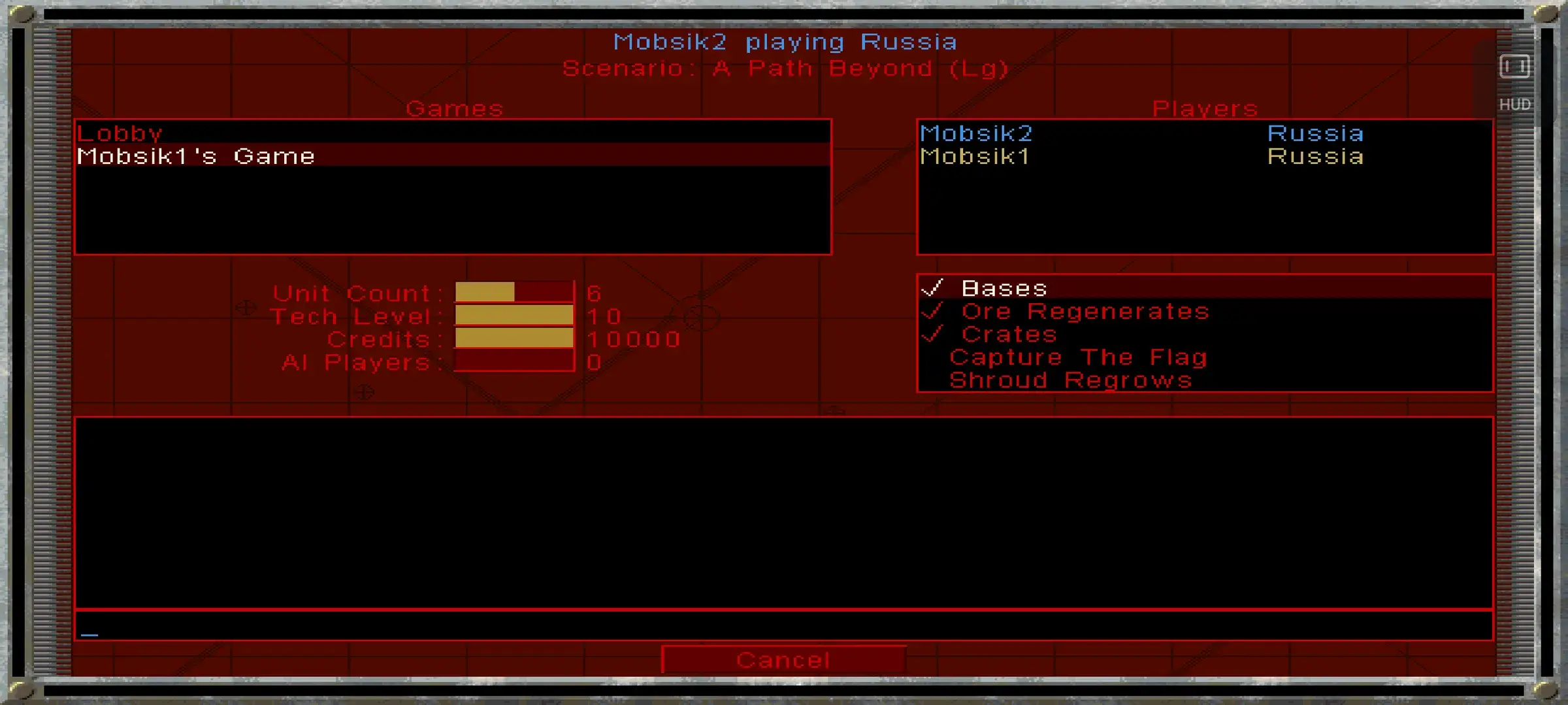
After joining, the scenario appears at the top, player names on the right and match settings below. Guests do not have an OK button. Stay here while the host taps OK on their phone. Cancel leaves the host’s game.
 Enlarge ↗
The match has started
Check that everyone has reached the map
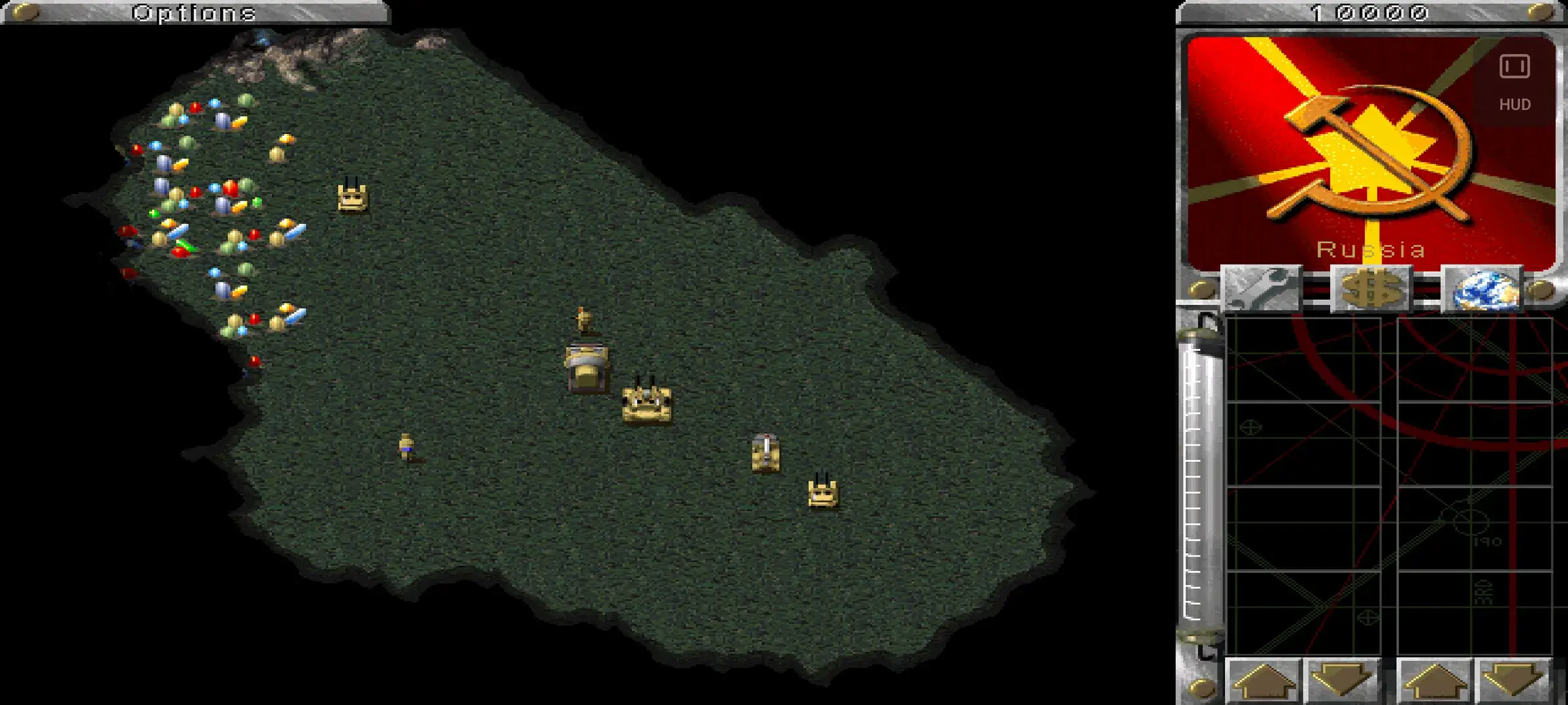
You should see your starting units and the minimap. Tap HUD to show the touch controls again if needed. To deploy your base, select the mobile construction vehicle and tap it again on clear ground.
 Enlarge ↗
Wi-Fi without internet
First connect all phones to the same router or one phone’s hotspot. Internet access is not needed. A Wi-Fi network QR and a room invitation do different things: connect to the network first, then join the room.
Open the local mode
In Play with friends, tap Wi-Fi offline. Keep Wi-Fi and the hotspot on throughout the match.
Enlarge ↗Create a room or find a nearby room
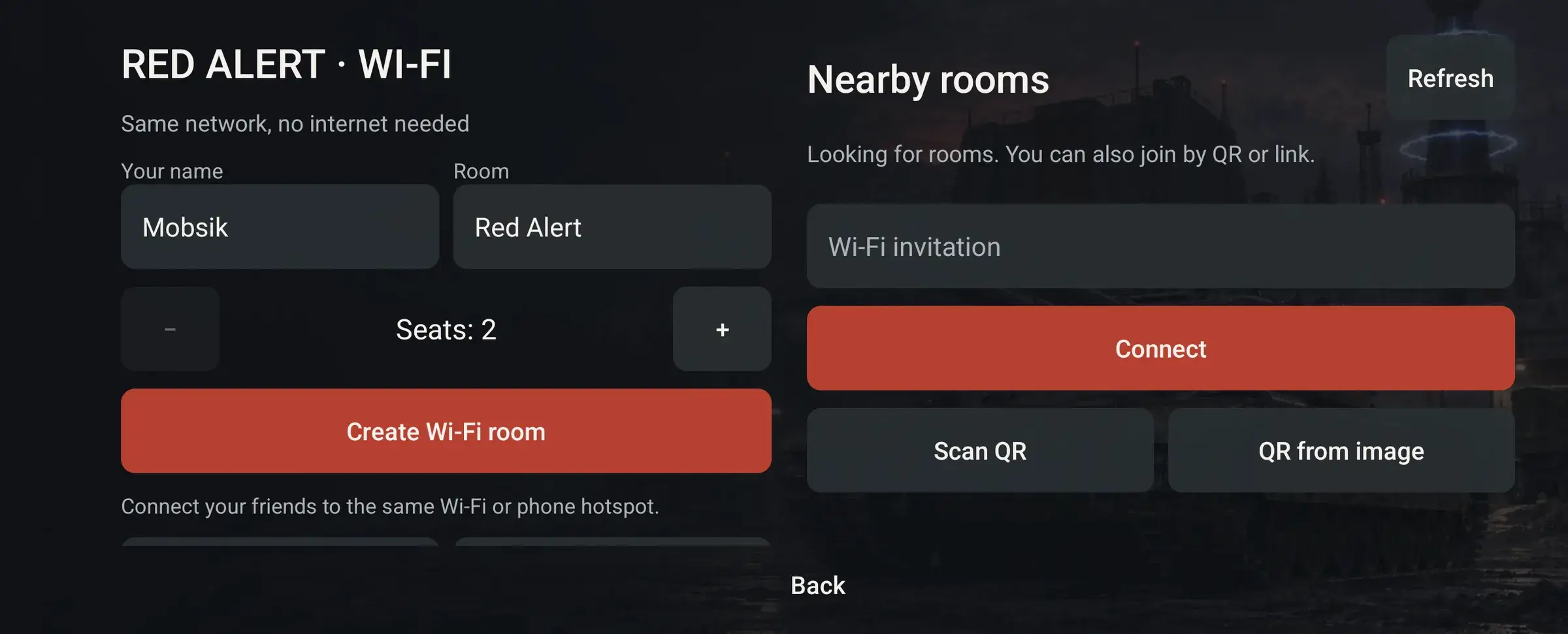
The host enters a name, room title and seat count, then taps Create Wi-Fi room. Guests tap Refresh under Nearby rooms and select the room. If discovery fails, use the host’s invitation or QR. Once everyone has joined, check readiness and launch players. Then everyone follows Inside Red Alert.
 Enlarge ↗
Campaign and skirmish
Launch a solo game
Tap Play in the launcher or wait for the countdown. A solo game does not need a room.
Enlarge ↗Choose a mode
For the campaign, tap New Game in the main menu. For a battle against the computer, choose Multiplayer Game → Skirmish, set the map and options, then tap OK.
Enlarge ↗Touch controls
- Tap
- Select an object, confirm a menu item or give an order to selected units.
- Swipe with one finger
- Move the camera around the map.
- Hold one finger, then drag
- Select units with a box. Hold for about half a second before moving.
- Pinch with two fingers
- Zoom the battlefield in or out.
- Tap with two fingers
- Right-click to cancel an action or clear a selection. Touch with both fingers at the same time.
- Hold two fingers, then drag
- Drag with the right mouse button held. Hold both fingers for about half a second first.
- HUD
- Show or hide the overlay buttons. Open Help for gesture diagrams.
Troubleshooting
A friend is missing from the game
Check the app's room roster first. Everyone must open Network. The creator selects New, then guests select that game and Join.
The launch button is disabled
You need the creator, at least one guest and a ready mark for every connected participant.
Versions or files do not match
Install the same APK on all phones and wait for file verification. Different language choices in the same bilingual build are allowed.
Connection lost
You cannot rejoin a match that has already started. Return to the room, check internet or Wi-Fi and create a new match. Keep the game open and avoid switching networks during play.
The game will not start
Check free storage and retry preparation. If the error continues, open Settings → Report a problem. Include your phone model and the step that failed.