
PLAY WITH FRIENDS
COUNTER-STRIKE1.6
Counter-Strike with friends on Android.
Get your friends together
Create a room or open a friend’s invitation.
Download the game ↗Install the game before joining a room.
CS 1.6 rooms
COUNTER-STRIKE 1.6
Install CS 1.6, return to this page and choose “Confirm and open game”. Your invitation is saved. Download game
Readiness and the Start game button are in the app.
Room settings
FROM INSTALL TO MATCH
How to play with friends
A short guide with on-screen instructions. No sound needed; English subtitles available.
Contents
- 01
Install the game
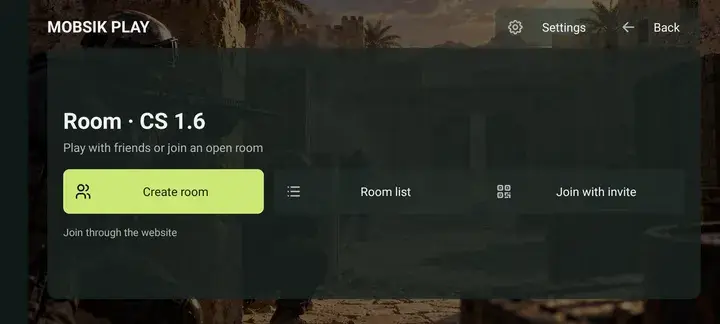
Download CS 1.6 below, install it and launch it. Wait for preparation to finish.
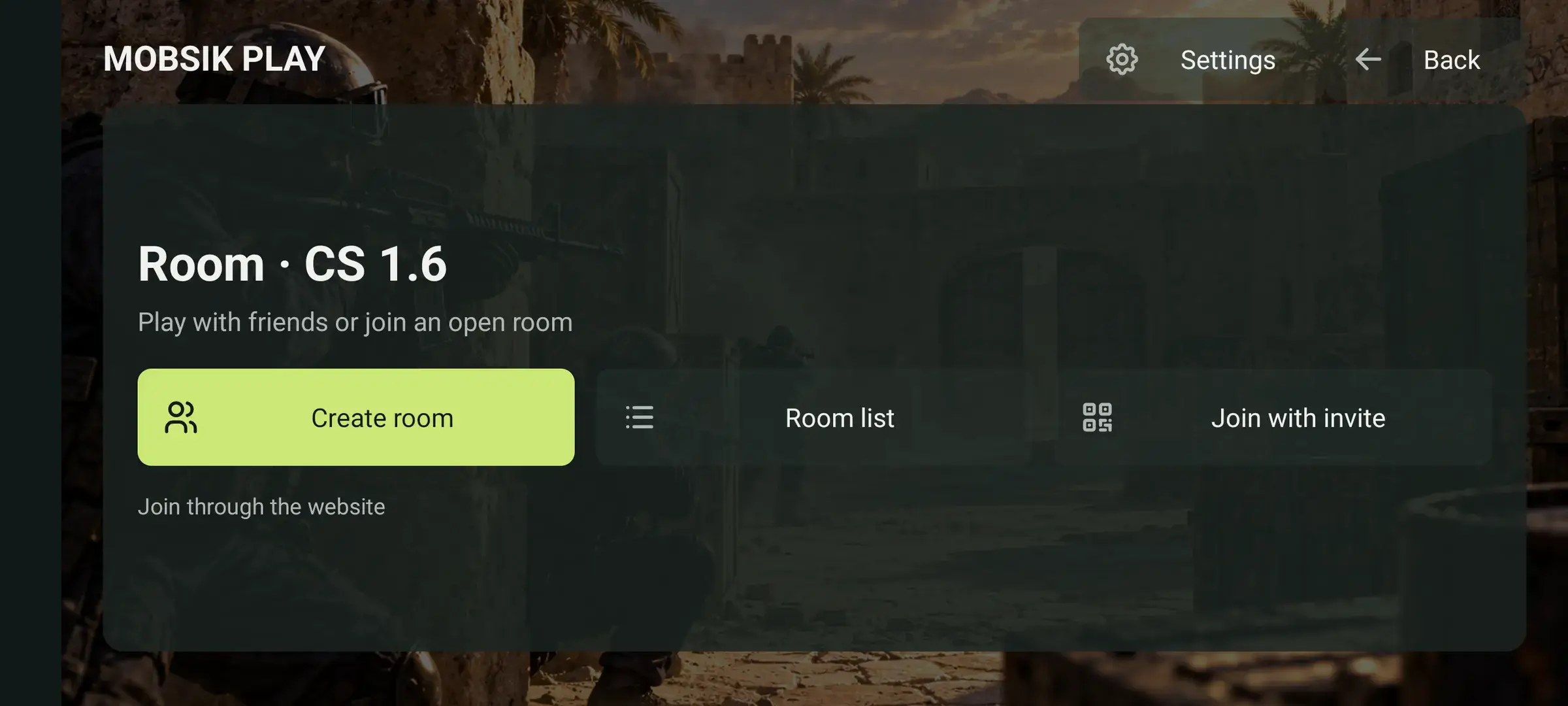
Tap “Open rooms”. If you are already in the game menu, tap “Room”.
- 02
Create or find a room
“Create room” opens the website. Enter a name and choose a map.
Public rooms hold 16 players. Private rooms have a password and a player limit you choose; a lock marks them in the list.
To join others, open “Room list” and tap “Join”.
- 03
Invite friends
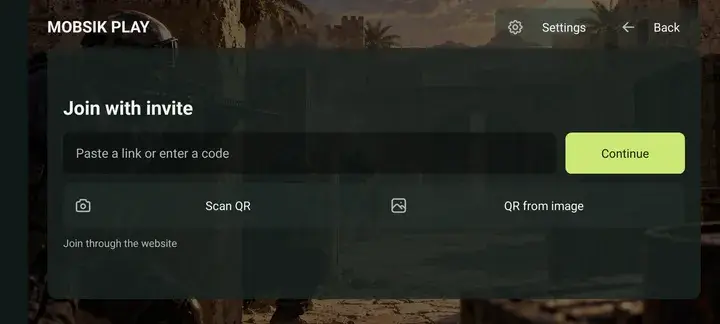
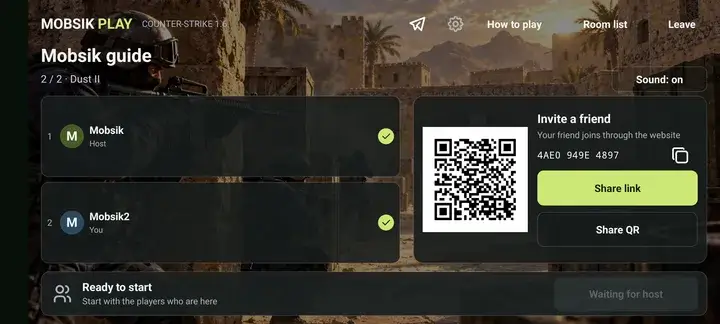
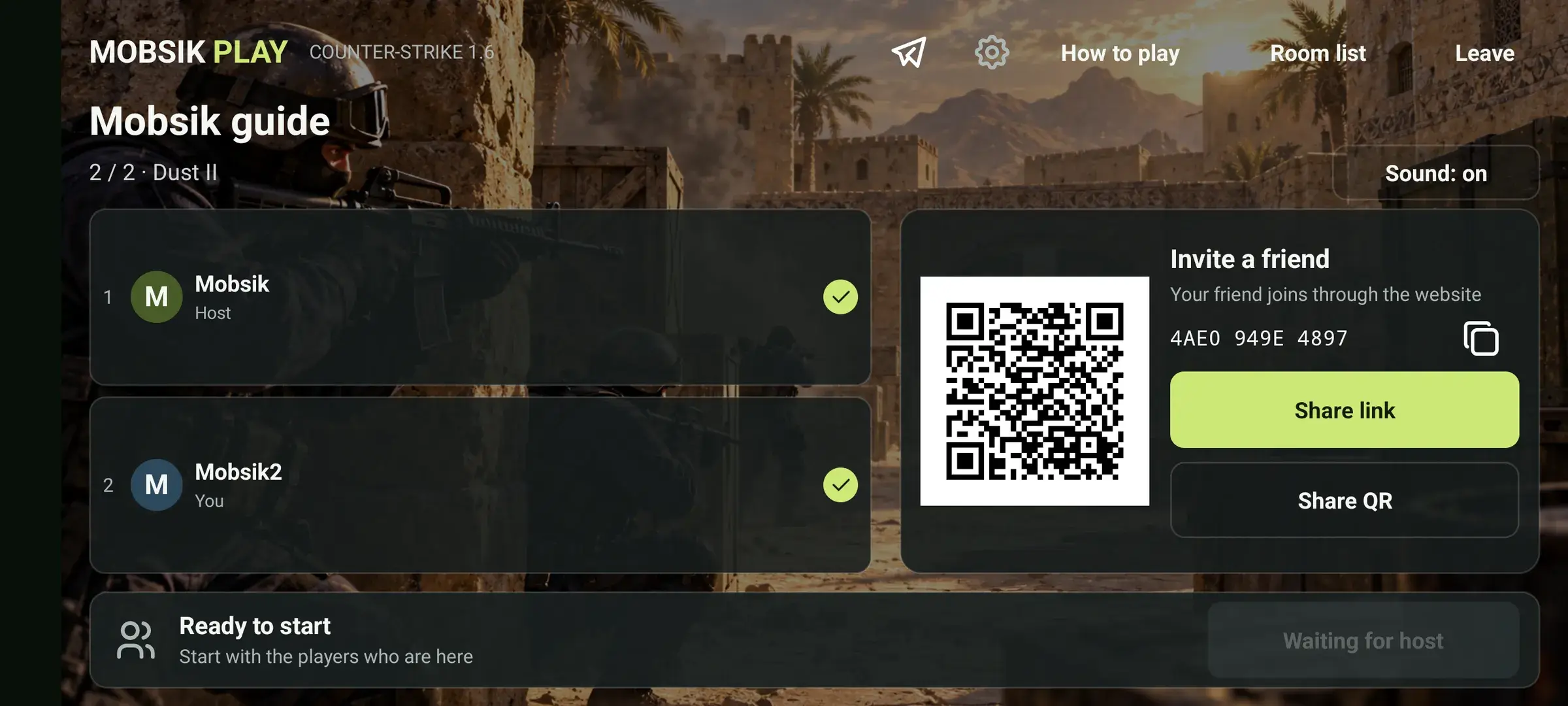
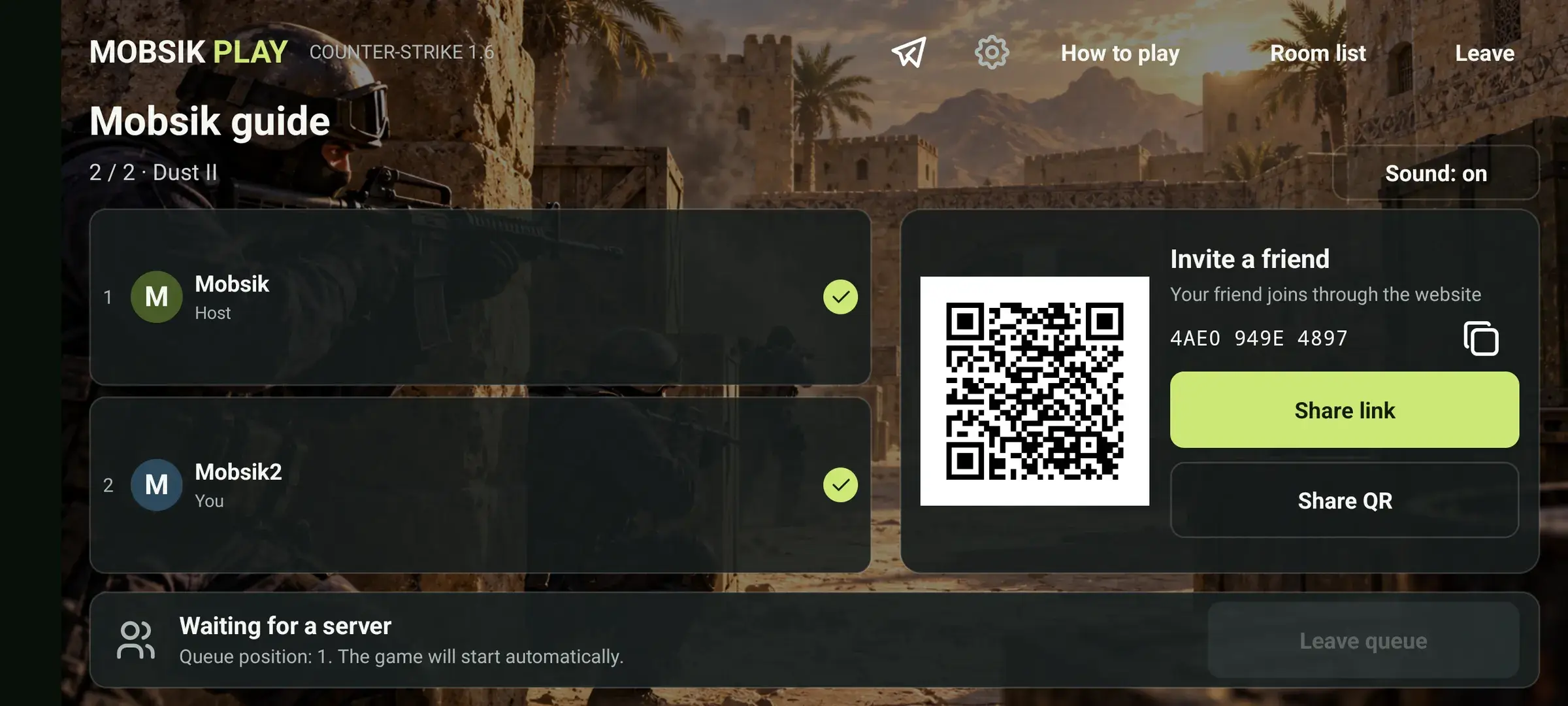
In the room, tap “Share link” or “Share QR”. Share the password separately.
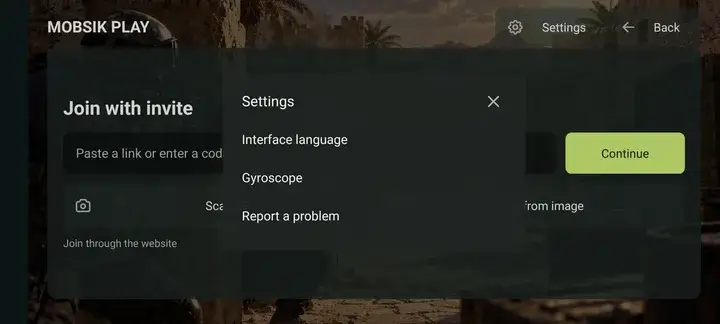
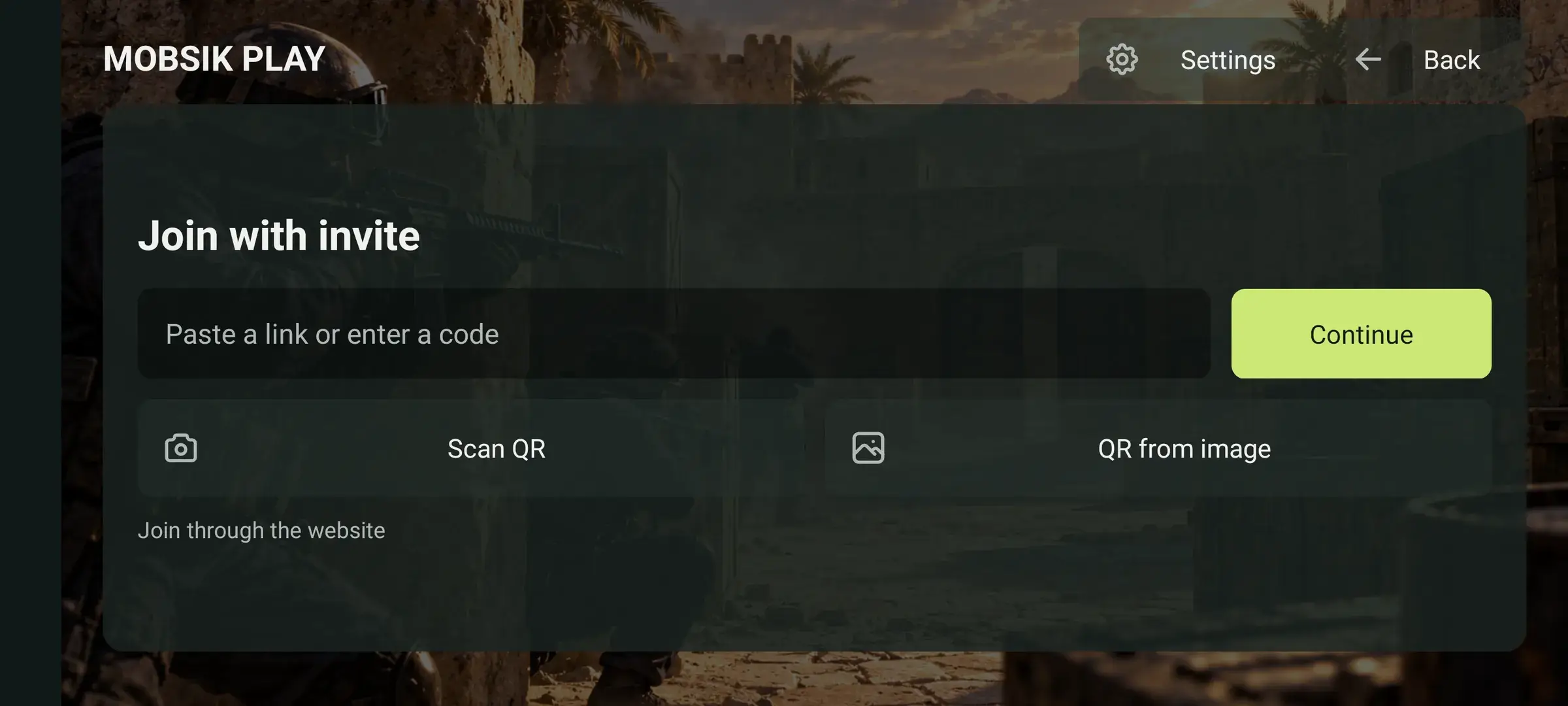
Got an invite? Open the link or choose “Join with invite”: paste a link, enter a code, scan a QR with the camera or select a QR image.
Use your own invitation. The QR codes in these screenshots are examples.
- 04
Confirm and join
On the website, enter a nickname using Latin letters and tap “Confirm and open game”. Allow the browser to open CS.
Every player does this, including the creator. Use different nicknames within the room.
- 05
Start the match
Wait for your friends in the app. A green check means a player is ready.
Once at least two players are ready, the host taps “Start game”. Use “Choose map” to change the map before starting.
After loading, choose a team and a character. Choose opposite teams to play against each other.
- 06
Wait for a server
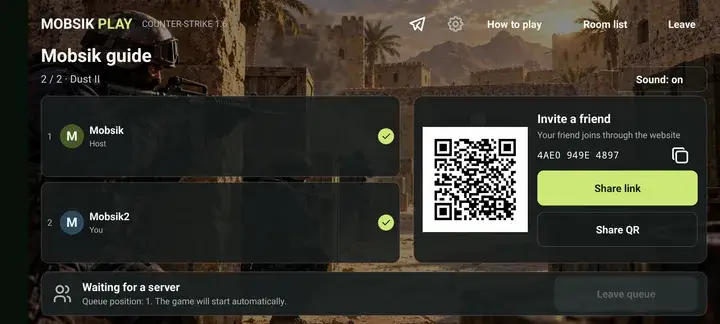
If your room is queued, keep it open. The match starts automatically when a server becomes available.
The host can leave the queue and try again later.
- 07
During the game
Joined mid-round? Choose a team and spectate until the next round.
“Room” opens the menu; “Return to match” takes you back. The match keeps running.
“Leave” removes only you. “Close for everyone” ends the room. If the host leaves, another player takes over.
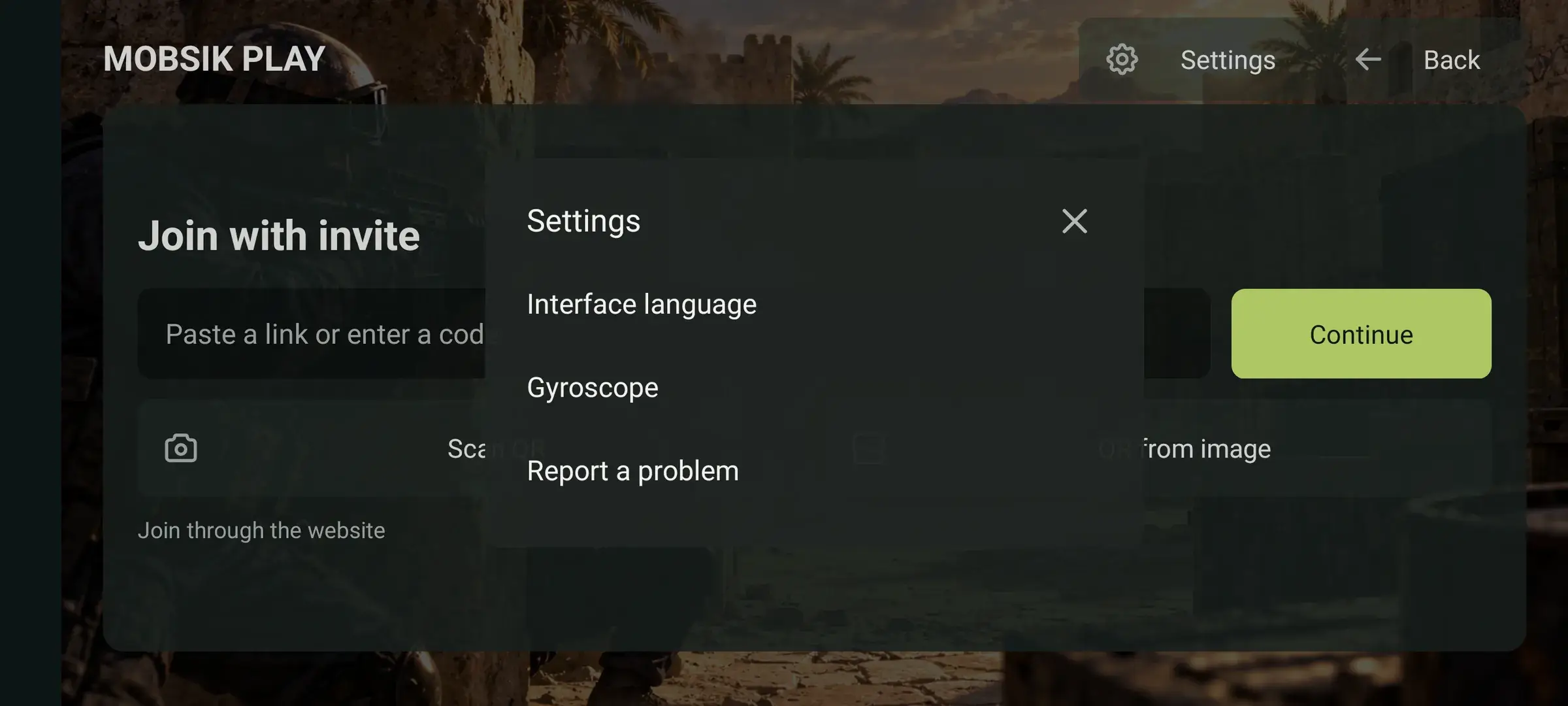
Open the room’s Settings for language, gyroscope and problem reports.
- 08
Vote for the next map
After the match, vote for the next map. You can change your vote until the countdown ends.
Wait for the new map to load. Stay in the same room.
- 09
Enable gyroscope aiming
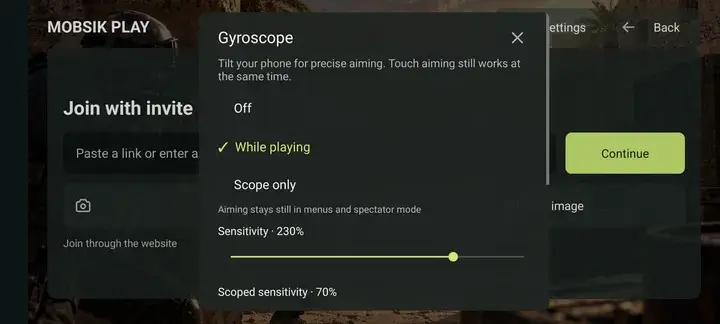
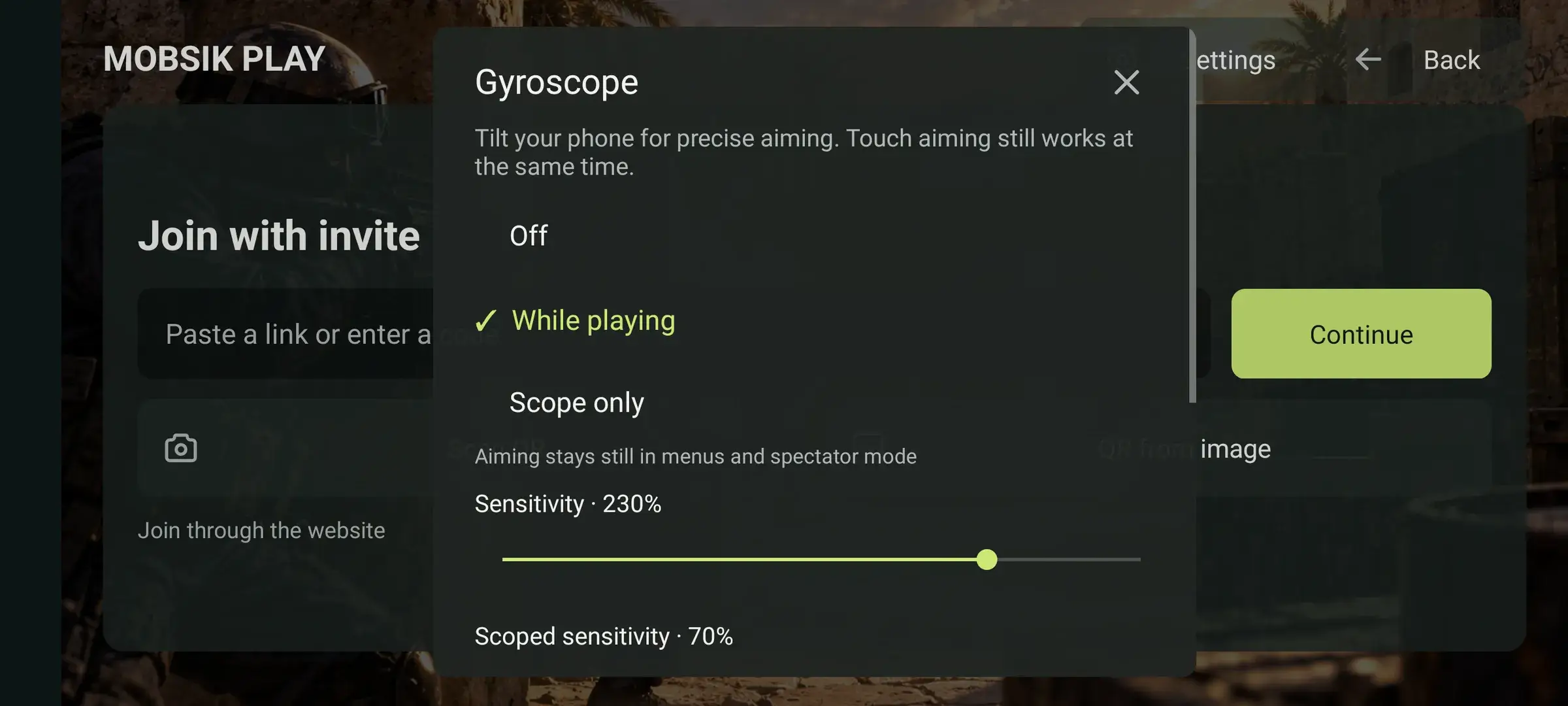
Open “Settings → Gyroscope”. Choose “While playing” or “Scope only”. Select “Off” to disable it.
Return to the game and gently tilt your phone to aim. Touch aiming still works.
- 10
Adjust sensitivity
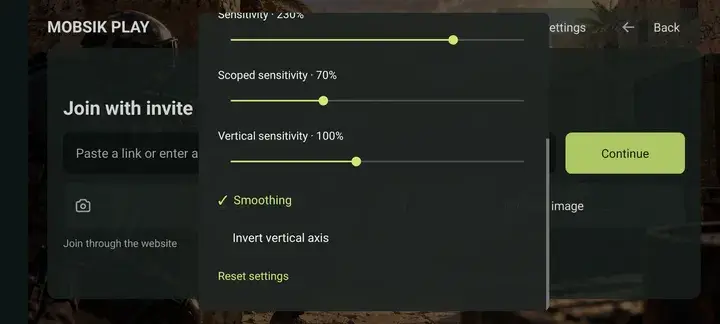
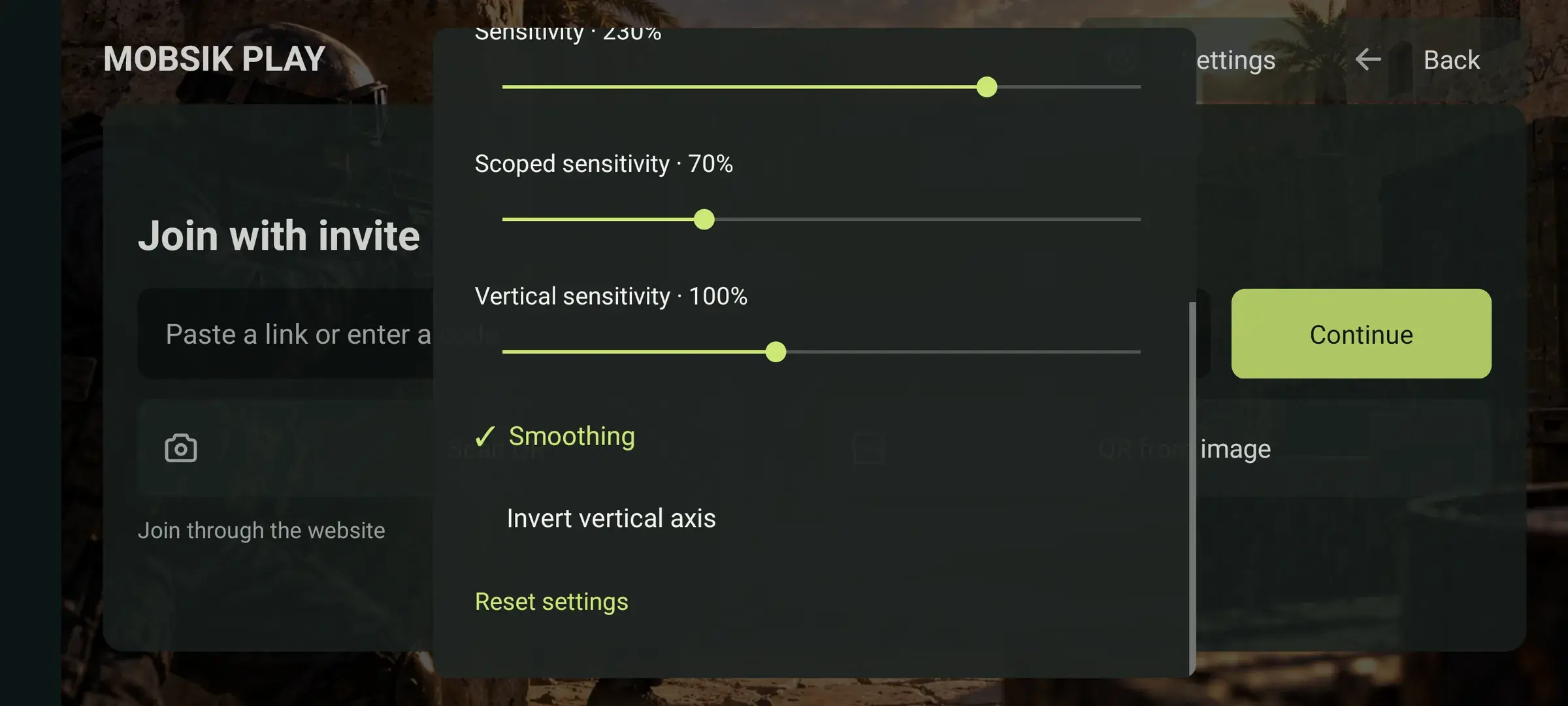
Scroll down. Start at 100%: lower sensitivity if aiming is too fast, or raise it if it is too slow.
Adjust scoped and vertical sensitivity separately. Smoothing reduces shakes; vertical inversion reverses up and down.
Changes are saved immediately. Gyroscope aiming is inactive in menus and spectator mode.
- 11
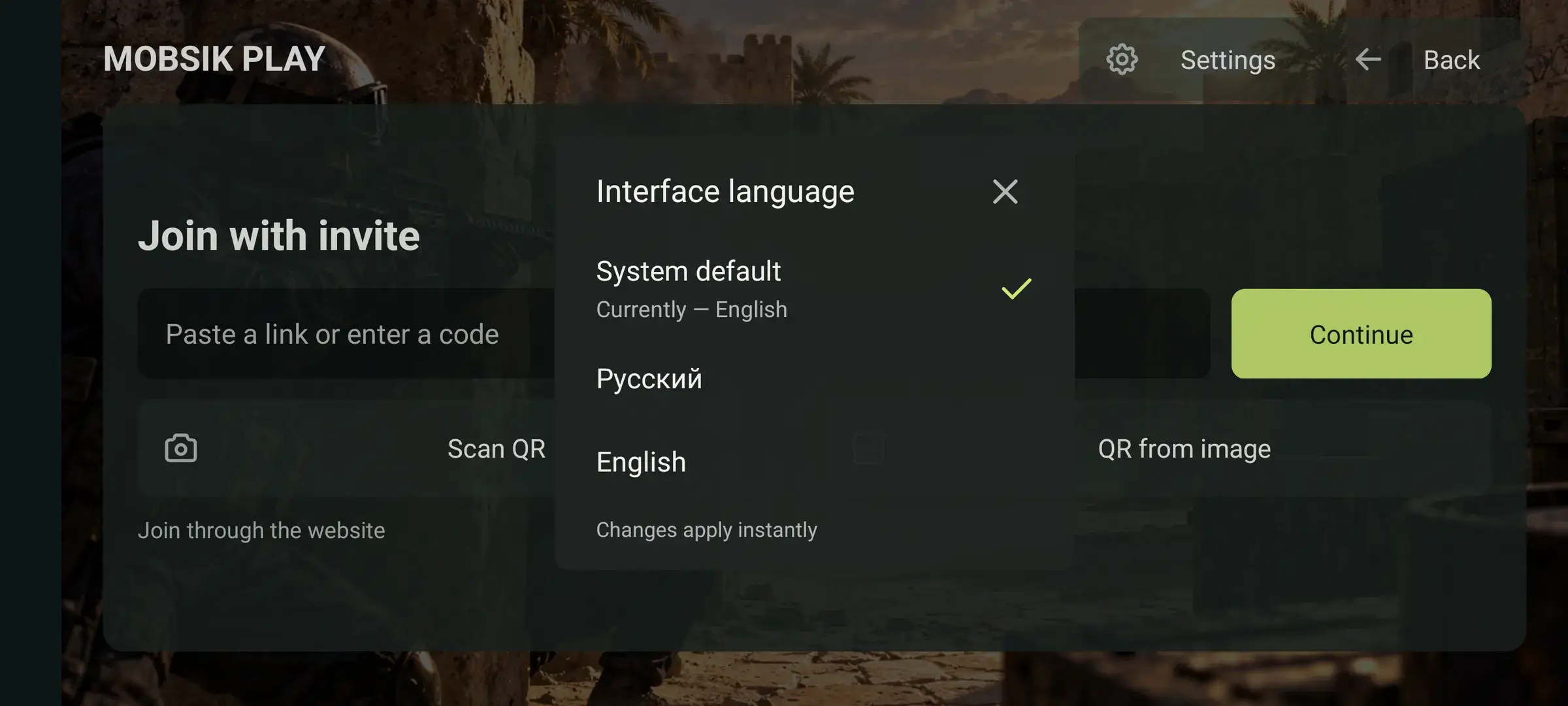
Choose a language
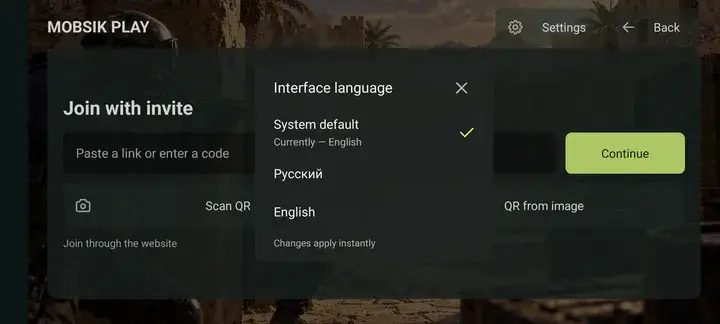
Open “Settings → Interface language”: Russian, English or “System default”.
System default uses Russian for a Russian system and English otherwise. Use RU / EN to change the website language.
- 12
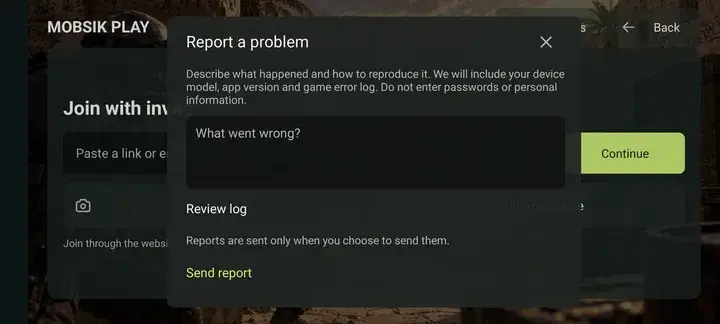
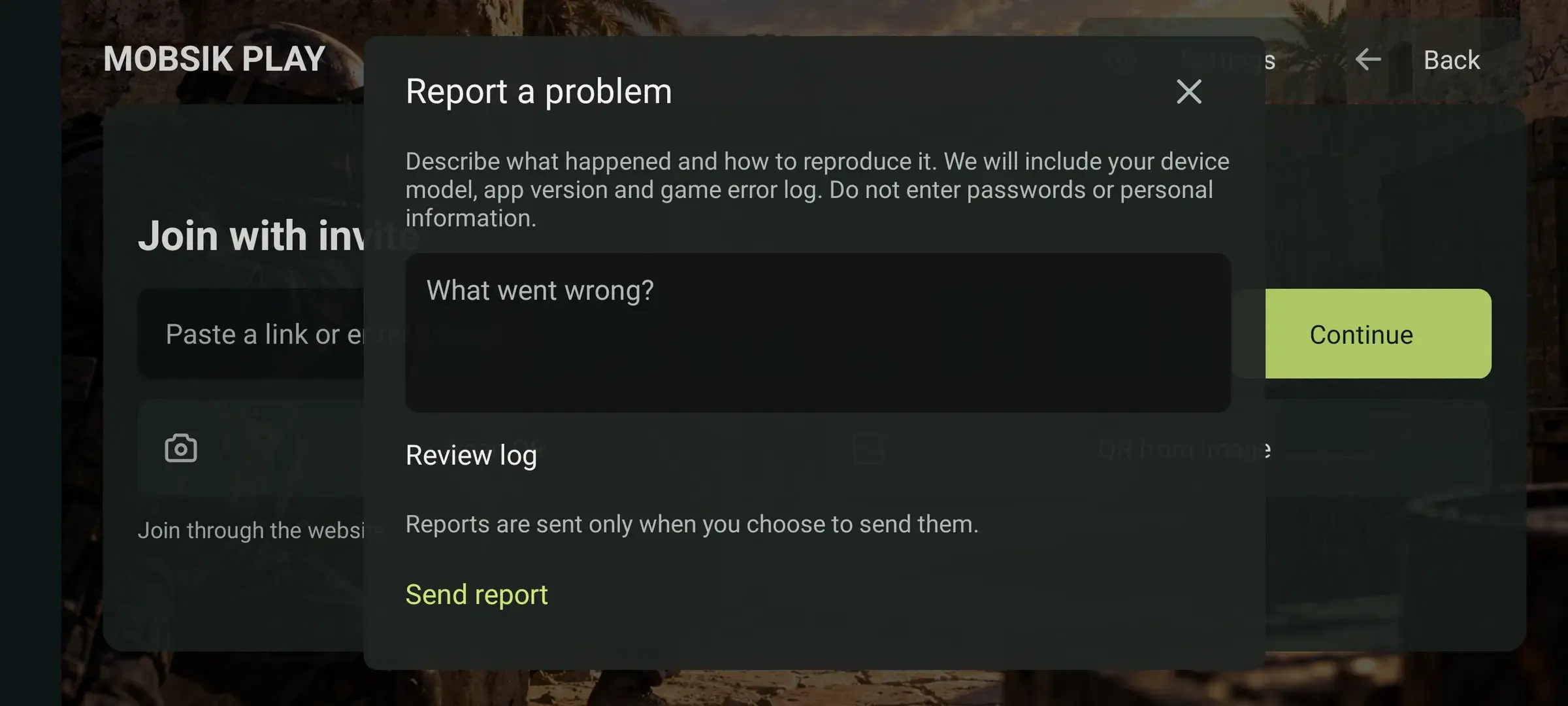
Report a problem
Open “Settings → Report a problem”. Briefly describe what you tapped and what happened.
Tap “Send report”. A report ID appears after it is accepted.
- 13
Update the game
When an update is offered, tap “Update”. Download the new version and install it over the current one.
Do not uninstall the game first.
- 14
If you cannot join
The website will not open the game: tap “Open game”. If that fails, copy the personal link below confirmation and paste it in CS under “Room → Join with invite”. You can also open the personal QR using “QR from image”.
No link or QR? Refresh the page or open the same room in Chrome. If the invitation expired, confirm again.
Lost connection or stuck in the CS menu: restore internet access and tap “Return to match”. If the map does not load, confirm again on the original room page.
If something goes wrong
The app did not open
Make sure CS 1.6 is installed. Return to the invitation in your browser and choose “Confirm and open game”. Returning players keep their place.
The match will not start
Only the creator can start. At least two players must be connected in the app. Friends still on the website need to confirm and open the game.
The room has closed
Create a new room and share a new invitation. Active matches have no room time limit. An empty room closes after 10 minutes without participants.
Ready to play?
2–16 players · Android · Online multiplayer