

HOW TO FISH · MOBSIK PLAY
Go fishing together in five steps
The host opens a room and a world. A friend joins from the list, by QR or link, and the game connects you automatically.
Tap a thumbnail to enlarge. Screenshots show the new build on test devices; your interface language may differ.
Open How to Fish rooms
Install How to Fish · MOBSIK 1.0.2-mobsik.7 or later on both phones over the previous build. Check the version in the launcher. The original game and older MOBSIK builds do not support this automatic flow.
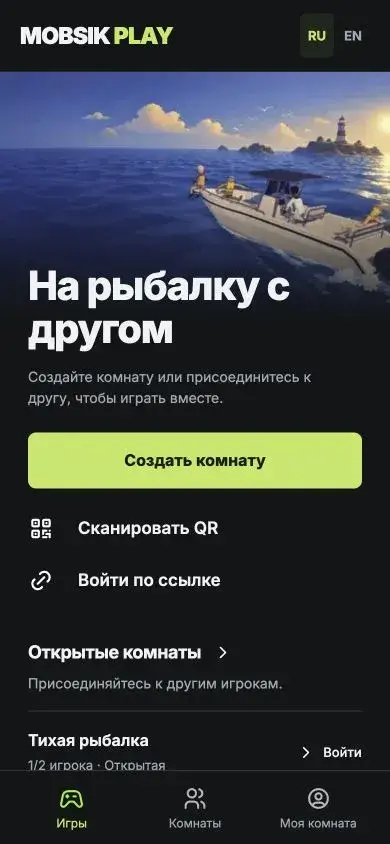
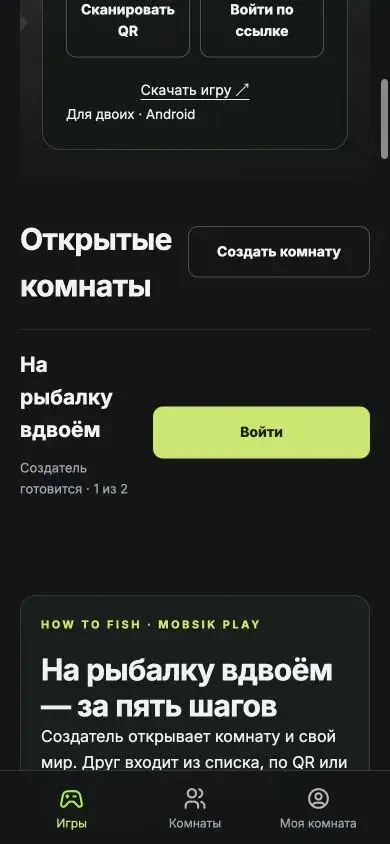
Open a room on this page, or select With friends in the app launcher. You can create a room, browse open rooms, scan a QR or paste an invitation link.
 Enlarge ↗
Create a room and invite a friend
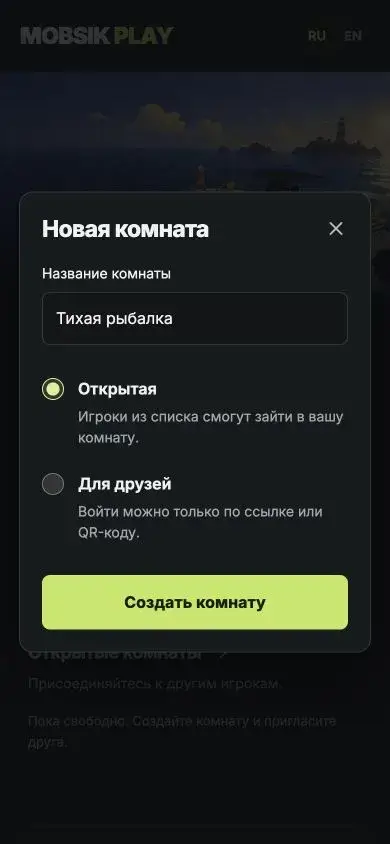
Select Create room, enter a name and choose who can join. An open room appears in the list, where anyone can take the free slot. A friends room is hidden from the list and requires your QR or invitation link.
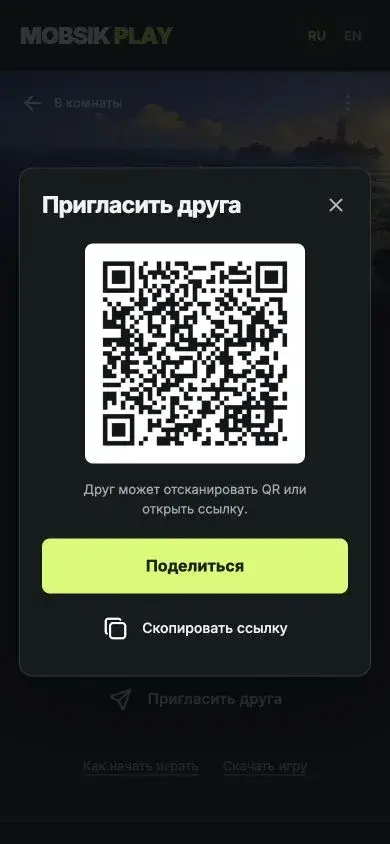
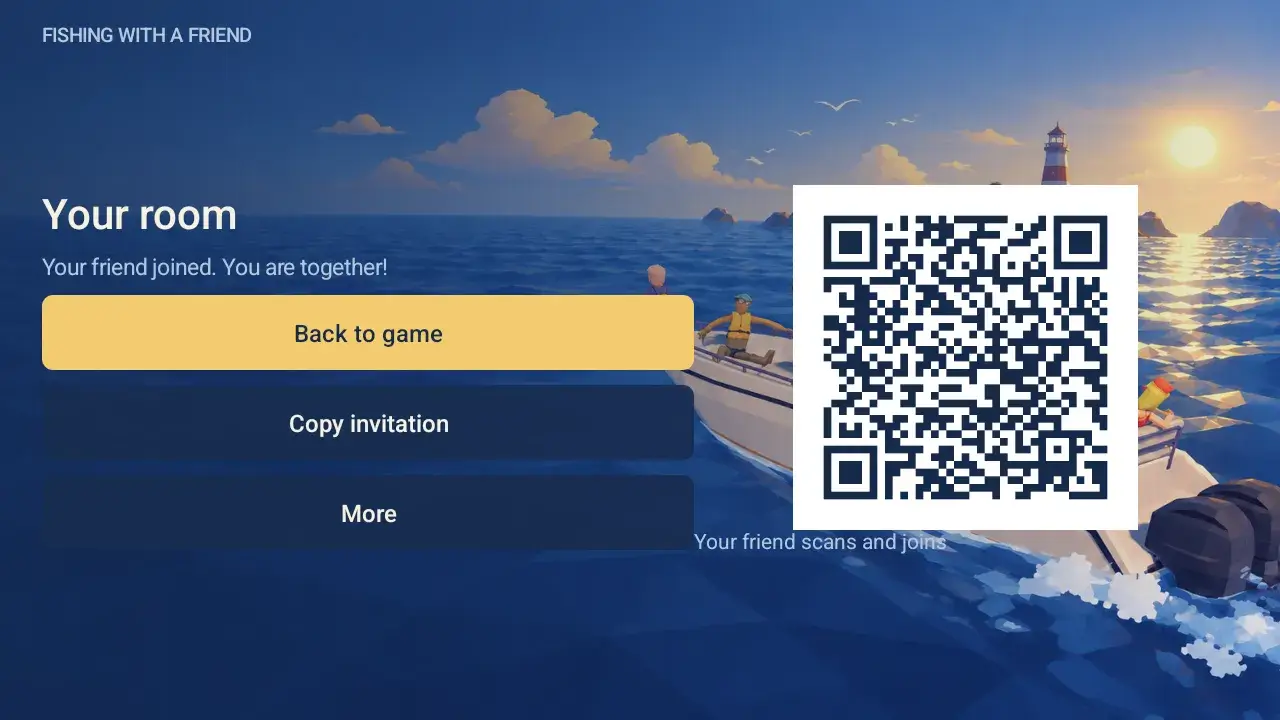
After creating the room, select Invite a friend. Show the QR to a nearby friend or copy and send the link. The room has two places: yours and your friend’s.
The example QR belongs to a closed test room. Show your friend the invitation from your own room.
Select Play and choose a world
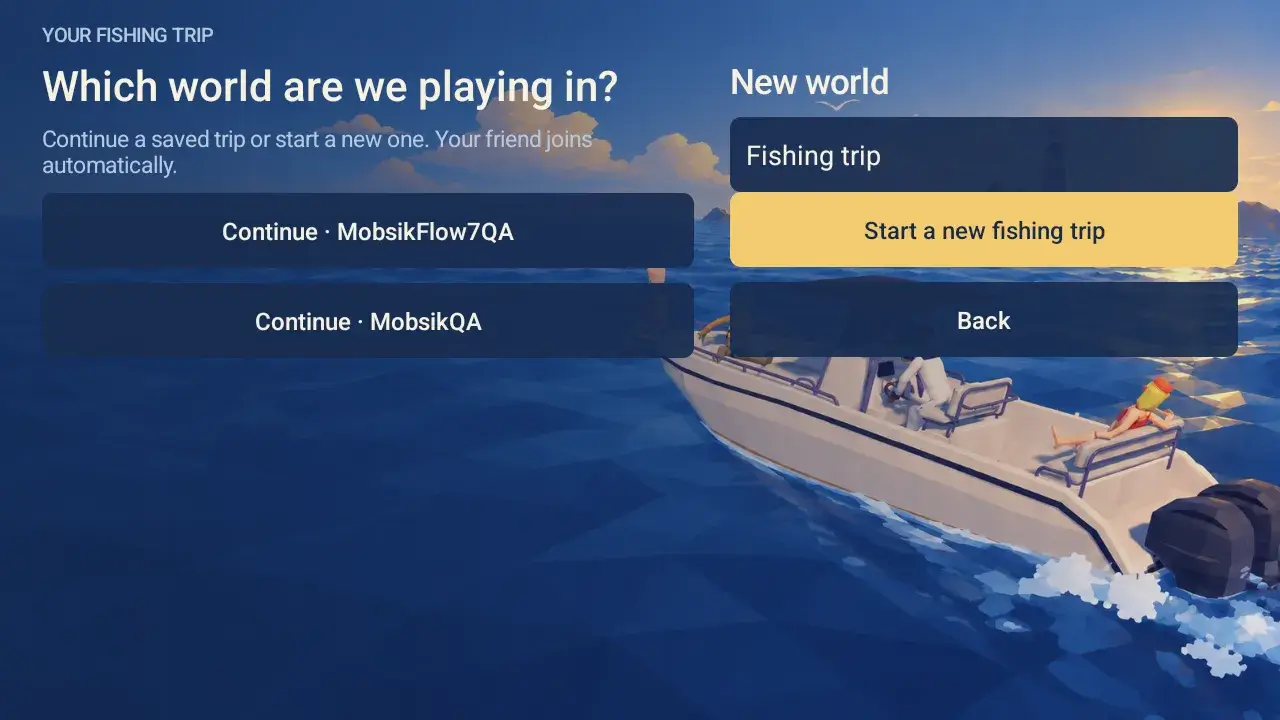
Select Play in your room and allow the browser to open How to Fish. Choose Continue beside a saved world or Start a new fishing trip. A new world name is already filled in and can be changed.
Wait for the world to load. The room becomes ready automatically. Keep the game open during co-op play. The MOBSIK button shows your QR over the game.
 Enlarge ↗
Join your way and select Play
Room list: open Open rooms and select Join beside an available room. Link: open the invitation or paste it using Join by link. QR: select Scan QR, allow camera access and point at the host’s invitation.
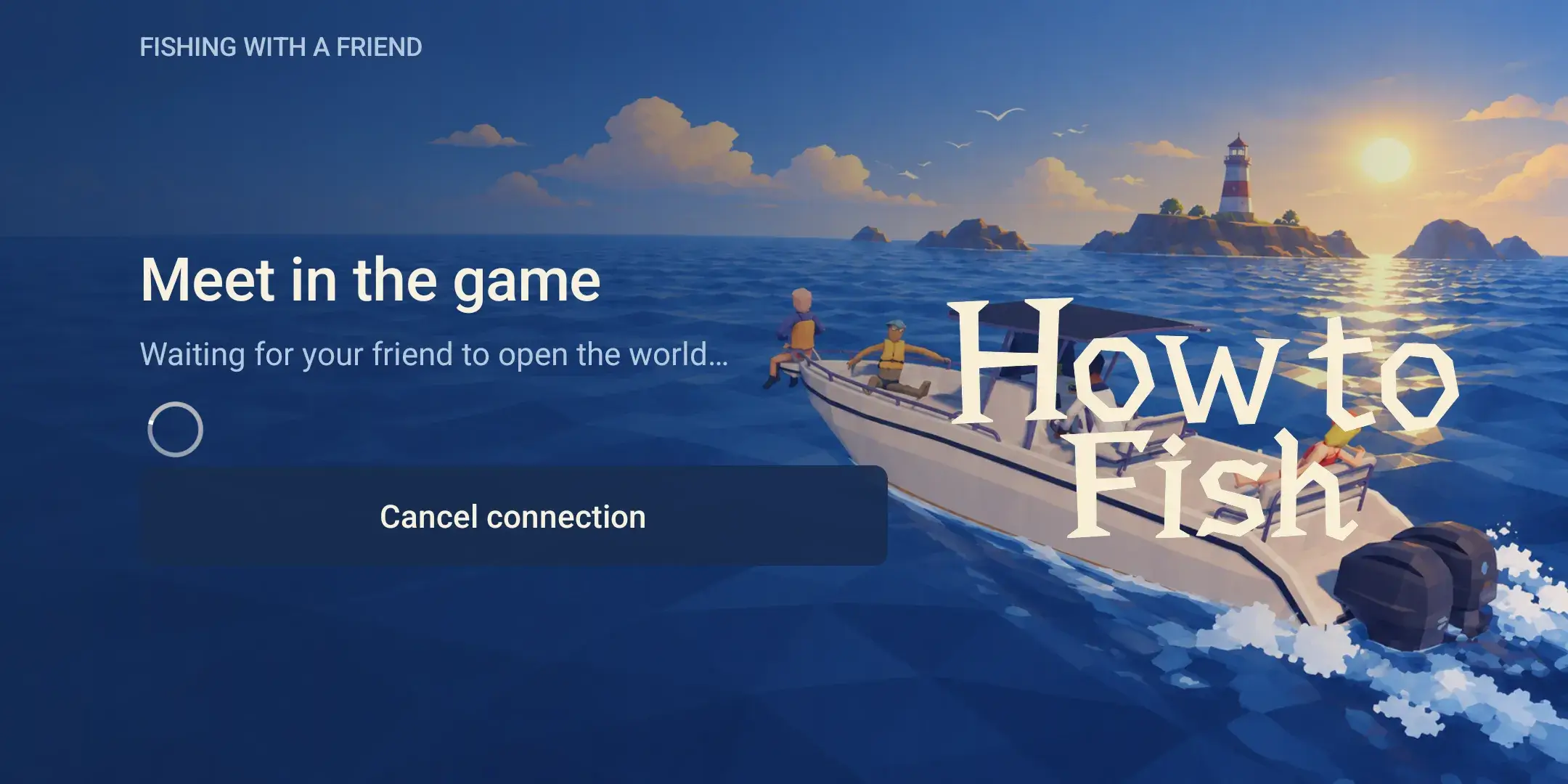
If an invitation card opens, select Join room. Then select Play. The game waits for your friend to be ready and connects automatically. There is no need to create a world or find networking buttons in the original menu.
If the browser camera is unavailable, the QR dialog offers the game scanner and link entry. For a QR image on this same phone, ask for the text link instead.
Play and continue the same world
Once your friend loads, you are in the same world. The MOBSIK menu shows room status, QR and invitation link. More offers reconnection and leaving; the host can also release the guest slot or close the room.
Before finishing, the host saves the world from the game’s pause menu. Then close your room using MOBSIK → More → Close room or on the website. Select the same save for your next trip.
 Enlarge ↗
Need help?
Your friend has not opened the world yet
Leave the waiting screen open. The host selects Play and chooses a saved or new trip. The guest connects automatically once it loads.
The camera does not work
Use the game scanner or ask your friend for a text link. You can allow camera access the next time you open the scanner.
The slot is taken
Use the same browser to rejoin. If another player holds the slot, the host can release it using More in the game or Room actions on the website.
The connection dropped
Bring the host’s game back to the foreground. The guest selects MOBSIK → More → Retry connection. If the room has closed, choose another or ask for a new invitation.
Another room cannot be created
You can keep two active rooms across MOBSIK PLAY games. Close one of your own rooms and retry.
Game and updates
Both devices need MOBSIK 1.0.2-mobsik.7 or later for this flow. Install over the previous build to preserve your worlds.
Downloads and updates ↗